TANDEM quickstart
Put TANDEM on a track, pick one of the 19 factory presets, then work the FET and OPTO stages by hand and read the meter. The first pass through the two-stage compressor, presets of your own, and what to do when something looks wrong.
What TANDEM is
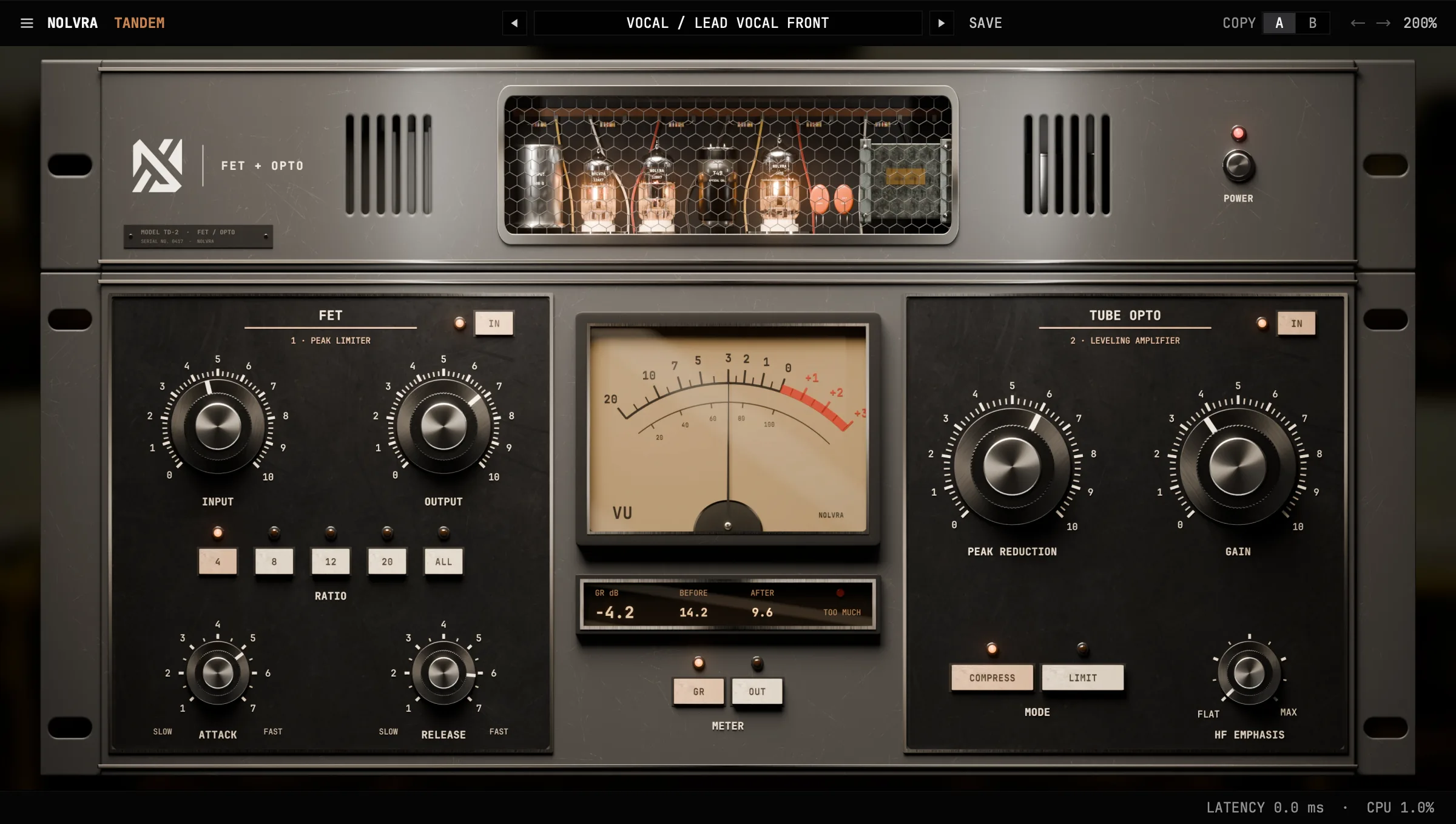
TANDEM is two compressors on one insert: a FET stage and an optical (OPTO) stage, in series, FET first. Use the FET for fast, firm control of peaks, the OPTO for slow, smooth levelling, or both together the way a vocal chain often runs them.
It runs as VST3 and Audio Unit on macOS 11 or later, natively on Apple Silicon Macs, and as a 64-bit VST3 on Windows 10 or 11. Signing in to Nolvra Hub with All-Access, or a TANDEM license key, is required to use the plug-in. It adds no latency.
Your first pass
Install it, then open either door
The Nolvra Hub installs TANDEM and keeps it updated. On macOS everything lands in your home folder rather than the system one, so no admin password is asked for: the VST3 into ~/Library/Audio/Plug-Ins/VST3 and the Audio Unit into ~/Library/Audio/Plug-Ins/Components. On Windows the VST3 goes into C:\Program Files\Common Files\VST3, and the setup asks for administrator rights. Rescan plugins in your DAW afterwards if TANDEM does not appear on its own. Two things unlock it and either one is enough on its own. An active All-Access membership on the account you are signed into in the Hub needs no key. A TANDEM license key, which reads TANDEM-XXXX-XXXX-XXXX, goes into the plug-in's activation screen: type it, press ACTIVATE while you are online, and you are done. A key covers two machines. The 7-day trial opens TANDEM the way a membership does, with no card: you start it in the Hub or on the ALL-ACCESS tab of your account page on nolvra.com, and it covers the plugins in All-Access, not the sample packs.
Put it on the track
A vocal, a bass, a drum bus, the mix bus. TANDEM is an audio effect for mono or stereo tracks. It opens on INIT, the parameter defaults: the FET at 4:1 and the OPTO at a PEAK REDUCTION of 60, both stages in.
Start from a factory preset
Click the name in the preset bar to open the preset library, then pick a folder on the left: VOCAL, DRUMS, BASS, INSTRUMENT or MIX. One click loads a preset and leaves the library open, so you can try several in a row. Each of the 19 presets was tuned on a real recording of its own source and leaves the output at about the level it came in at, so you can compare presets by ear without a jump in loudness. The arrows either side of the name step through the presets one by one.
Set how hard it works
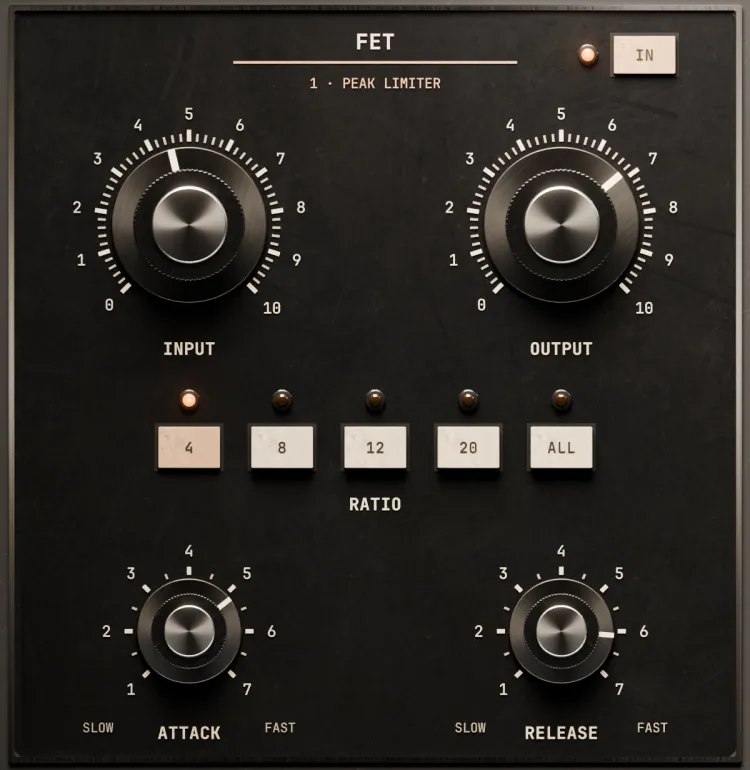
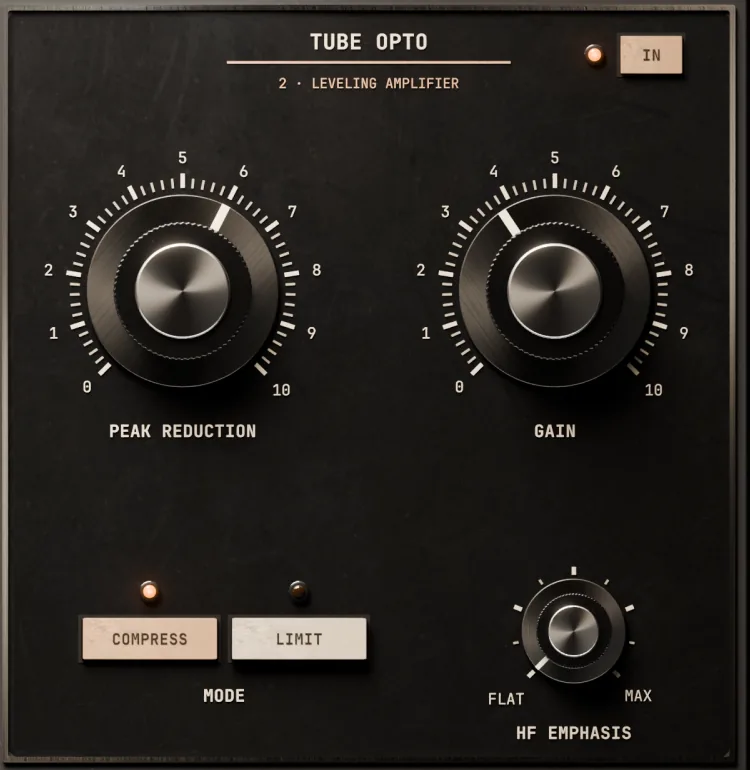
On the FET, INPUT drives the signal into the stage and OUTPUT sets the level that leaves it: more INPUT, more compression. On the OPTO, PEAK REDUCTION sets how far it pulls the level down and GAIN brings the level back up. Watch GR dB while you turn: it is how much the two stages take together, in dB.
Shape it with the timing, the ratio and the mode
ATTACK and RELEASE set how fast the FET grabs and lets go. Their scales run 1 to 7, from SLOW on the left to FAST on the right: fully left is an 800 µs attack and a 1100 ms release, fully right 20 µs and 50 ms. The RATIO keys pick 4:1, 8:1, 12:1, 20:1 or ALL. On the OPTO, the MODE keys pick COMPRESS or LIMIT; LIMIT starts a little earlier and holds the level a little harder. HF EMPHASIS, from FLAT to MAX, makes the OPTO react more to high frequencies; at FLAT it reacts evenly.
Use one stage or both
Each stage has an IN key at its top right, with a lamp that is lit while the stage is in. Switch one out to run TANDEM as a FET compressor or an opto compressor alone. The stages fade in and out rather than cut.
Compare with POWER
Press POWER to hear what you had: its lamp goes dark, BYPASSED covers the panel, and the output is the input, bit for bit. The knobs and keys still work under it. Press POWER again to bring TANDEM back in.
Compare two settings with A and B
A and B hold two settings at once. Work on A, press B and build a second one, then switch between them by ear. COPY copies the slot you are on to the other one. Each slot keeps its own preset name, and the project remembers both slots and which one was active.
The controls on the face
- ControlWhat it does
- INPUTDrives the FET stage, -24 to +24 dB. More drive, more compression
- OUTPUTThe level out of the FET stage, -24 to +24 dB
- ATTACKHow fast the FET reacts, 800 µs at SLOW to 20 µs at FAST
- RELEASEHow fast the FET lets go, 1100 ms at SLOW to 50 ms at FAST
- RATIO4:1, 8:1, 12:1, 20:1 or ALL
- FET INSwitches the FET stage in or out
- PEAK REDUCTIONHow far the OPTO pulls the level down, 0 to 100
- GAINThe level out of the OPTO stage, -20 to +40 dB
- MODECOMPRESS or LIMIT
- HF EMPHASISHow much more the OPTO reacts to high frequencies, FLAT to MAX
- OPTO INSwitches the OPTO stage in or out
- METERGR or OUT: what the VU shows. It changes only the display, never the sound
- POWERTakes the whole plug-in in or out. Its lamp is lit while TANDEM is in
Turning the controls
Drag a knob up or down to turn it; hold Shift while you drag for fine steps. The mouse wheel turns it too, and steps RATIO. Double click a knob to put it back to its default. A key of a row selects its own position with one click: a RATIO number, GR or OUT, COMPRESS or LIMIT. The two IN keys and POWER switch on and off.
The face shows no numbers on purpose. Point at a control and the status bar along the bottom of the window reads its name and value, as in ATTACK 63 us; it keeps reading while you turn. To type an exact value, use your DAW's parameter view for TANDEM: it shows each control in its unit, and you can type a number with or without the unit.
What the meter tells you
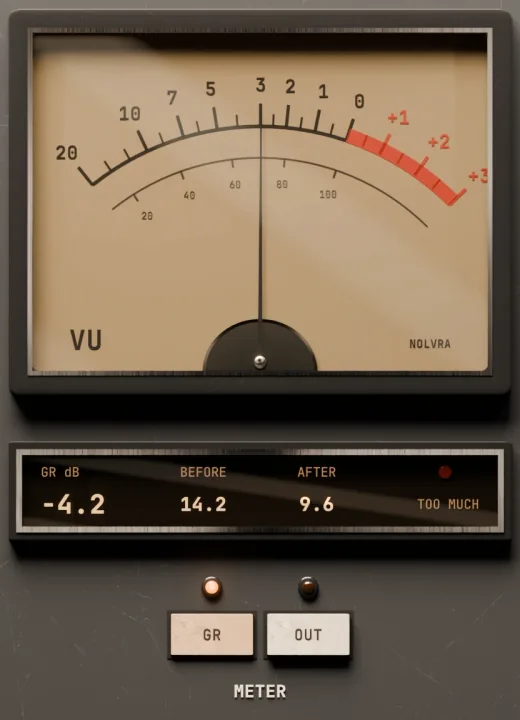
With the METER key on GR, the VU needle shows how much the two stages are taking together: at 0 nothing is being taken, and the needle falls to the left by the reduction. On OUT it shows the output level, with 0 VU at -18 dBFS RMS.
The box under the VU reads three things. GR dB is the gain reduction of both stages together. BEFORE and AFTER are the distance between the peaks and the average level over the last three seconds, in dB, before TANDEM and after it: the gap between the two is how much the compression has flattened the track. TOO MUCH lights when the two stages together have averaged more than 8 dB of reduction over the last three seconds. It is a warning only and changes nothing in the sound: heavy compression is a fair choice, the light just tells you that you are there.
While POWER is off the needle rests and the readouts show 0.0.
In your DAW's parameter list
One of TANDEM's parameters is not on the face. OPTO Memory, 0 to 20 with 5.5 as the default, sets how much the OPTO remembers long, heavy reduction: the higher it is, the more slowly the OPTO recovers after it. Presets set it. POWER is in the list too: the Audio Unit names it Power, and in the VST3 it is the host's Bypass.
The preset library
Click the name in the preset bar and the library opens over the window. On the left: ALL, FAVORITES, RECENT and USER, then the five factory folders. INIT, the parameter defaults, is under ALL. Type to search by name or folder. One click loads a preset and keeps the library open; Return loads the selected one and closes it. The arrow keys and Page Up and Page Down walk the list, Tab moves to the next category, and Escape clears the search, then closes the library. A click outside it closes it too. The line at the bottom says what the selected preset is for.
The star at the right end of a row makes a preset a favourite, factory or your own: FAVORITES then lists it, and favourites are still there when you reopen your DAW. RECENT lists the presets you loaded by hand.
A preset sets the twelve sound parameters. It does not touch POWER or the METER keys, and anything it does not carry goes back to its default, so a preset sounds the same whatever you had before it. The preset bar shows the folder and the name, as in VOCAL / LEAD VOCAL FRONT. A star after the name, as in LEAD VOCAL FRONT \*, means you have changed something since you loaded it.
The factory presets
- PresetWhat it is for
- VOCAL · Lead Vocal EvenThe OPTO rides the phrases, 3 to 4 dB; the FET only catches the loudest syllables
- VOCAL · Lead Vocal FrontFET into OPTO, the classic chain, about 5 to 6 dB in all
- VOCAL · Backing Vocal TuckBacking vocals held even and a step behind the lead: mostly OPTO, slow, about 5 dB
- VOCAL · Rap Vocal FrontFET 8:1 with a fast attack and release, the OPTO evens the lines; about 6 dB
- DRUMS · Kick PunchThe slowest FET attack lets the click through, a short release is back before the next hit
- DRUMS · Snare CrackSlow attack, fast release, about 5 dB on the hits
- DRUMS · Snare FatFast FET at 12:1 with a short release brings the body up, about 9 dB on the hits
- DRUMS · Drum Room SmashRoom mics crushed with ALL, about 12 dB on the hits
- DRUMS · Drum Bus GlueSlow attack keeps the hits, 2 to 4 dB on the peaks
- DRUMS · Drum Bus Smash8 to 12 dB on the hits: dense and loud
- BASS · Bass EvenOPTO levelling, the FET only on the hardest plucks
- BASS · Bass GripFET 4:1 into a little OPTO, about 5 to 6 dB
- BASS · Synth Bass LockFET 8:1, slow enough to keep each note's attack
- INSTRUMENT · Rhythm Guitar Tight2 to 3 dB that steadies a distorted rhythm part
- INSTRUMENT · Lead Guitar SustainFET 8:1 holds each note up as it decays
- INSTRUMENT · Acoustic Guitar StrumThe pick stays, the loud strums stop jumping out
- INSTRUMENT · Piano SmoothGentle OPTO levelling, the dynamics of the playing kept
- MIX · Mix Bus Glue1 to 2 dB, slowest attack and a long release
- MIX · Master Glue GentleAbout 1 dB, mostly OPTO, the transients left alone
Saving a preset of your own
Save it under a new name
Open the menu at the left end of the top bar, or right click the panel, and choose SAVE AS. The preset bar becomes a text field with the current name in it. Type a name and press Return; Escape leaves without saving. TANDEM never overwrites a preset this way: if the name is taken, the new one gets a number after it, as in MY VOCAL 2.
Or save in one click
SAVE, in the top bar or in the menu, with a factory preset or INIT loaded, saves your settings as a new preset under the loaded name, with no dialogue. With one of your own presets loaded, SAVE asks OVERWRITE or CANCEL first, and replaces it only on OVERWRITE.
Find it again
Your presets appear in the library under USER, and the arrows step through them after the factory ones. RENAME and DELETE, in the menu or at the bottom of the library, work on your own presets only; DELETE asks before it removes the file. FOLDER at the bottom of the library opens the folder your presets are kept in.
Where your presets are kept
Each preset is one .nvpreset file. On a Mac they are in ~/Library/Application Support/Nolvra/TANDEM/UserPresets, on Windows in %APPDATA%\Nolvra\TANDEM\UserPresets; the folder is made the first time you save. Copy the files to move your presets to another machine. The library reads the folder again every time it opens, so a file you put in it appears without restarting. A name can be up to 64 characters; letters with accents are saved without them, and other characters outside plain ASCII become a dash.
A session remembers the sound itself, not only the preset's name, so it opens the way you left it even if the preset has since changed or been deleted.
The top bar and the menu
UNDO and REDO, the two arrows near the right end of the bar, walk back and forward through your changes on the face, up to 100 steps; a preset change and a switch between A and B are one step each. Cmd+Z and Shift+Cmd+Z do the same on a Mac, Ctrl+Z and Ctrl+Shift+Z on Windows. They do not record your DAW's automation, POWER or the METER keys, and they are kept while you close and reopen the window.
The percentage at the right end of the bar opens the window sizes, 50 % to 200 %; 100 % is 1200 by 679 points, and the window's corner takes any width in between. The size is saved with your project and remembered for the next new copy of TANDEM on that machine.
The menu at the left end of the bar, which a right click on the panel also opens, holds SAVE AS, DELETE, SAVE and RENAME, the same window sizes, ACCOUNT, and TANDEM's version and build. ACCOUNT opens a card with OPEN NOLVRA HUB and a link to nolvra.com.

When something looks wrong
- TANDEM is not in your DAW: rescan plugins, and check that your host loads the format you installed. Logic and GarageBand load only Audio Units, and on Windows only VST3 is installed.
- The activation screen covers the window: TANDEM has not found a license on this machine. Sign in to Nolvra Hub with your All-Access account, or type your TANDEM key and press ACTIVATE. While it is locked the audio passes through unprocessed.
- "Activation limit reached": your key is already active on two machines. Deactivate one in Nolvra Hub, under Manage, then Licenses, and activate again.
- All-Access and no internet: TANDEM keeps working offline for 14 days, then asks to check in again. A bought key does not need regular check-ins.
- BYPASSED covers the panel: POWER is off. Press POWER to bring TANDEM back in.
- The track got quieter: turn up FET OUTPUT or OPTO GAIN until the level matches what you hear with POWER off. The factory presets already do this.
- TOO MUCH is lit: the two stages together are taking more than 8 dB on average. Back off INPUT or PEAK REDUCTION if that is not what you want.
- The needle does not move: check the METER keys; on OUT the VU shows the output level, not the reduction. Check that at least one stage's IN key is lit.
- There are no numbers on the knobs: that is by design. The status bar reads the control under the pointer, and your DAW's parameter view shows and takes exact values.
What ships
- ItemTANDEM 1.0.1
- TypeTwo-stage compressor: FET then OPTO, in series
- FormatsVST3 and AU on macOS, VST3 on Windows
- SystemsmacOS 11 or later, Apple Silicon · Windows 10 or 11, 64-bit
- LatencyNone
- Presets19 factory in five folders, plus INIT and your own
- CompareA and B, saved with the project
- Window50 to 200 %, remembered
- Activationa TANDEM license key on 2 machines, or All-Access through the Hub
- Trial7 days, no card
- ValidationApple auval passes on macOS
Still stuck
Write to support@nolvra.com with your operating system and its version, your DAW and its version, and what you hear or see. A screenshot of TANDEM's window helps.
Still stuck?
Nothing here matching? Write to a person.