SURGE controls explained
Every control in the SURGE browser: the three shelves, FAMILY, FAVORITES, SORT, BARS, PEAK, DICE and TAIL, and what each one actually changes.
Views, not edits
Most of SURGE's controls change what you are looking at, not what the sound is. FAMILY, FAVORITES and SORT are filters over the bank; nothing is ever removed from it. The controls that do change the exported file are BARS and TAIL.
The browser
Shelves: SWEEP UP · SWEEP DOWN · SUBS
Three shelves split the bank by what the sound does. SWEEP UP builds tension into the next section, SWEEP DOWN releases it, and SUBS holds the tuned sub drops. Switching shelves keeps your other filters where they are.
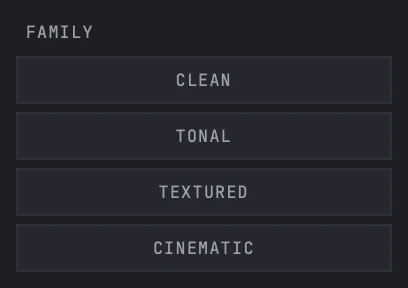
FAMILY
Keeps only the kinds of motion you tick. Ticking nothing means the whole shelf. This is a view filter: it never touches the bank.
FAVORITES
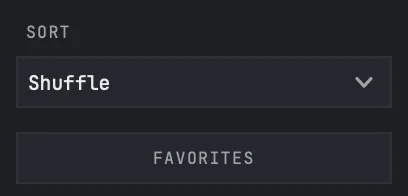
Keeps only the rows you starred. Stars survive between sessions.
SORT
Reorders whatever is left after the filters: default bank order, favourites first, or recently played.
RECENT
The chips above the list are the rows you played most recently, in play order. Clicking one selects that row again.
Timing and audition
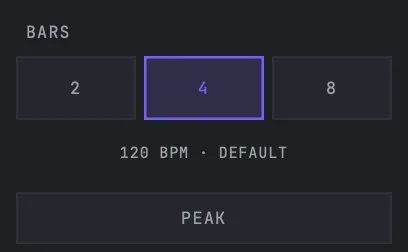
BARS
2, 4 or 8 bars, measured in your project's time. SURGE picks the length variant that fits the current bars-and-tempo combination, so the sweep lands on the bar line rather than near it.
Tempo source
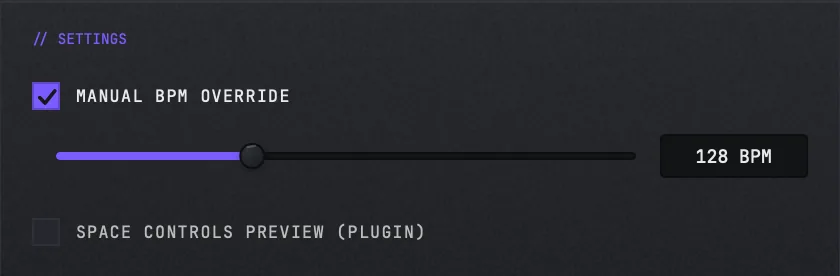
By default SURGE follows the host. If your host does not report a tempo, or you want a different one, turn on MANUAL BPM OVERRIDE in SETTINGS and set the value there. The line under BARS always names which of the two is in force.
PEAK
Starts previews at the last three seconds instead of the beginning. Press it mid-playback to jump to the payoff; press it again to return to where you were.
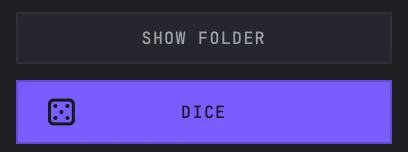
DICE
Picks a random row out of whatever the filters have left. It never reaches past your filters, so a narrowed list stays narrowed.
TAIL
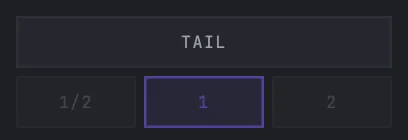
TAIL continues a riser's own ending instead of cutting it dead on the peak, by half a bar, one bar, or two. It is a SWEEP UP control only: a fall ends quiet and already decayed, so there is nothing left to ring on.
TAIL is part of the render, not the preview only. The exported file carries the tail you auditioned, and its name and beat count quote the same bars and tail setting the render used.
Export
Drag DRAG TO DAW to move the currently selected sound into your timeline, or drag any row out of the list directly. Both write a real file to ~/Music/Nolvra/SURGE Exports: nothing lands in a temp folder, and SHOW FOLDER opens that exact directory.

SETTINGS
SETTINGS holds the manual tempo override and the option to let the space bar drive the preview inside the plugin. It also reports the machine's activation state without offering a button for it, and where a device has been dropped it says so and points at support, which is where moving a device is handled.
Still stuck?
Nothing here matching? Write to a person.