Sending MIDI to PRISM PRO
PRISM PRO is an audio effect on the vocal track, so MIDI has to be routed to it. The exact route in Ableton Live, Logic Pro and FL Studio, with screenshots.
The one thing every setup trips on
PRISM PRO does not need MIDI: the engine follows the pitch of the voice it hears, and a vocal track with PRISM PRO on it is a finished setup. MIDI is for when you want to play the pitch yourself. The part that trips people is not PRISM PRO, it is the host: PRISM PRO is an audio effect sitting on an audio track, and most DAWs send MIDI to instruments rather than to effects. So the notes have to be pointed at the device, not just at the track.
The two halves every host has
Every host that can do this does it in the same two halves: first you pick the track PRISM PRO is on, then you pick the device on that track. The names differ and the halves do not. Live spells them MIDI To and the chooser under it. FL Studio spells them as a number at each end rather than a menu. Logic does not have those halves at all, so it solves the problem from the other end, which is why its section here looks different from the rest.
If a host offers only the first half, the notes reach the track and stop there, which looks exactly like nothing happening. The source line inside PRISM PRO is the check: it names MIDI the moment a note actually arrives.
What changes the moment a note arrives
MIDI is the top of PRISM PRO's pitch source order: it outranks the chord on the sidechain, which outranks the key and scale you set, which outranks the follower running free. Whatever is highest is what is driving the line, and the line beside the lists always names it.
So when MIDI takes over, nothing is quantised, because you already chose the note. OCTAVE steps aside, key and scale stop acting and their chips dim and say why, and the harmony is passive in this version for the same reason: the keyboard is choosing the pitch.
PRISM PRO gives the voice back on its own. Seven seconds after the last note is released, the follower takes the line again, so a rest in the middle of a take does not hand the whole song to a key that was let go minutes ago. One thing deliberately does not count as MIDI: a panic. All Notes Off and All Sound Off are what a host sends when the transport changes, which includes pressing Record, and those messages never put PRISM PRO into MIDI mode.
The name in your plugin browser
The plugin is called PRISM PRO from version 1.2.2 on, and it was called PRISM up to that release. So the entry you are looking for reads Nolvra PRISM PRO on a current install and Nolvra PRISM on an older one, and the pictures in this article were taken before the name changed, which is why they still read Nolvra PRISM. Nothing else moved with it: the bundle identifier and the plugin's own class and component codes are the same as they were, so a saved project loads the plugin either way, and the 1.2.2 installer removes the old bundle rather than leaving you with two entries that answer to the same identity.
Ableton Live
Put PRISM PRO on the vocal track
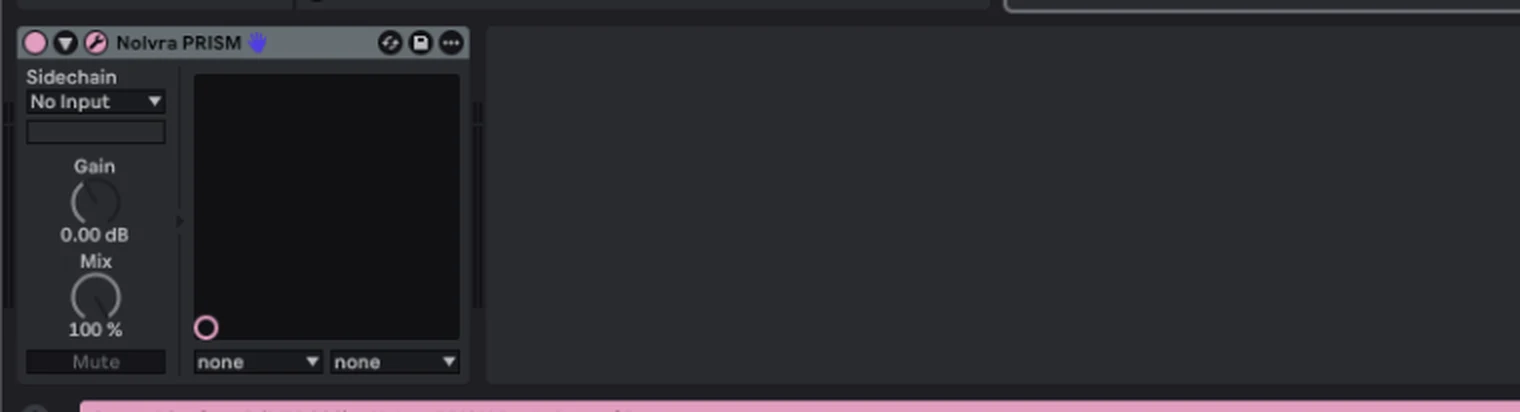
Drop Nolvra PRISM PRO onto the audio track that carries your voice. In Live's browser it appears twice, once as an Audio Unit and once as a VST3; either is fine and the VST3 is the one shown here. Live draws it as a device in the chain at the bottom of the window.
Add a MIDI track
Command-Shift-T. Live puts it after the selected track. Nothing about the MIDI track needs configuring except its output.
Point MIDI To at the audio track
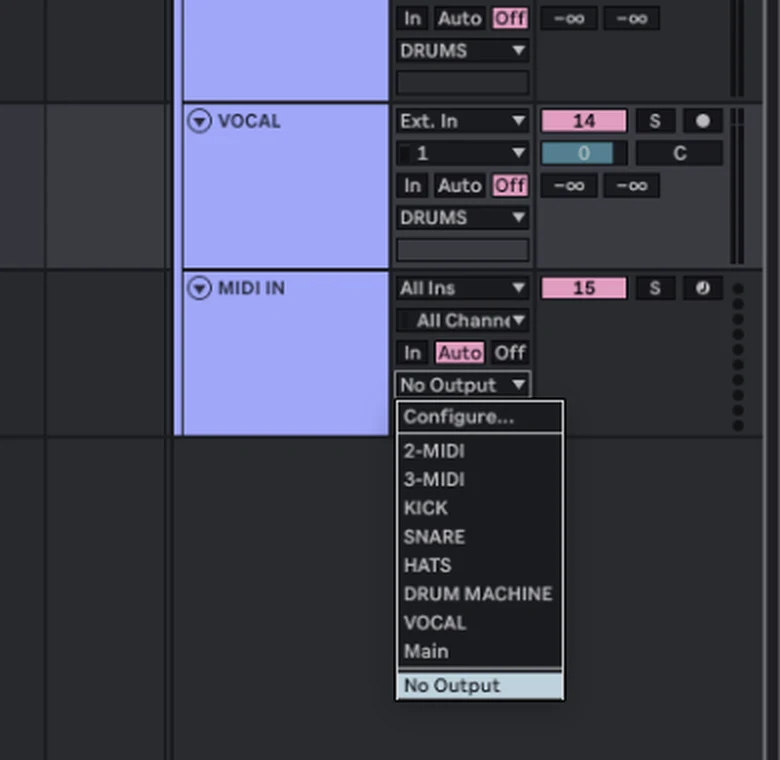
In the MIDI track's header, open the MIDI To chooser. Every track that can receive MIDI is listed, and the audio track holding PRISM PRO is one of them because PRISM PRO is on it. Pick it.
Pick the device in the second chooser
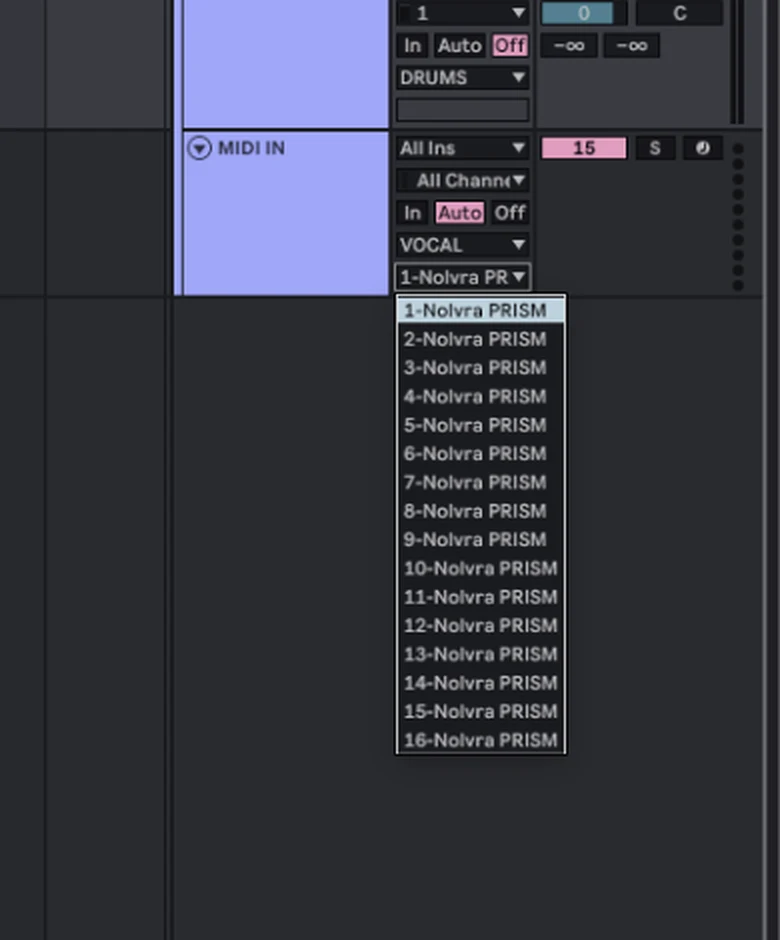
A second chooser appears underneath. It lists the MIDI-receiving devices on that track, one entry per MIDI channel: 1-Nolvra PRISM PRO through 16-Nolvra PRISM PRO. Channel 1 is the normal choice. Live fills this in for you when there is only one candidate, and the entry is still worth reading, because the number in front of the name is the MIDI channel and not a device number.
Arm the MIDI track
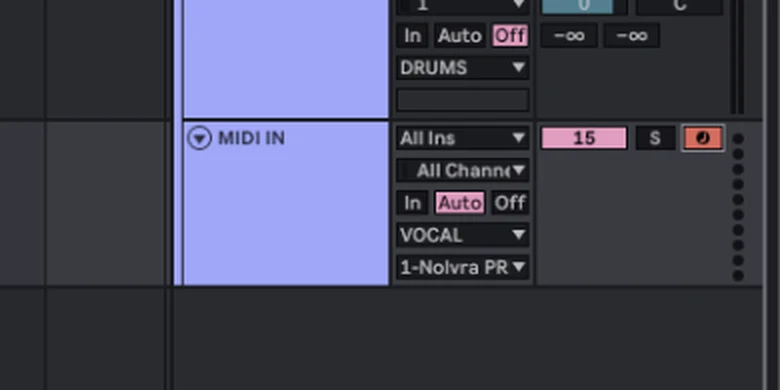
Arm it, or set its monitor to In. Play, and the source line inside PRISM PRO names MIDI.
Ableton Live: the chord input as well
The AUTO chord source needs audio rather than MIDI, and Live routes that through its own plugin wrapper. The strip to the left of the PRISM PRO device carries a Sidechain chooser: point it at the track playing the chords and PRISM PRO hears the chord, names it in the chip and snaps the line to the notes in it. If MIDI has arrived once, AUTO goes quiet, because MIDI outranks it.
Logic Pro
Know why Logic is different
Logic has no way to send MIDI to a plugin sitting in an audio track's Audio FX slot: nothing in Logic outputs MIDI to an audio channel strip. Logic solves it from the other end. PRISM PRO is an Audio Unit MIDI-controlled effect, so it can be instantiated as the instrument on a software instrument track, and the vocal reaches it through the side chain instead.
Create a software instrument track
Track, New Tracks, MIDI, Software Instrument. Logic loads its default patch, which you are about to replace.
Put PRISM PRO in the instrument slot
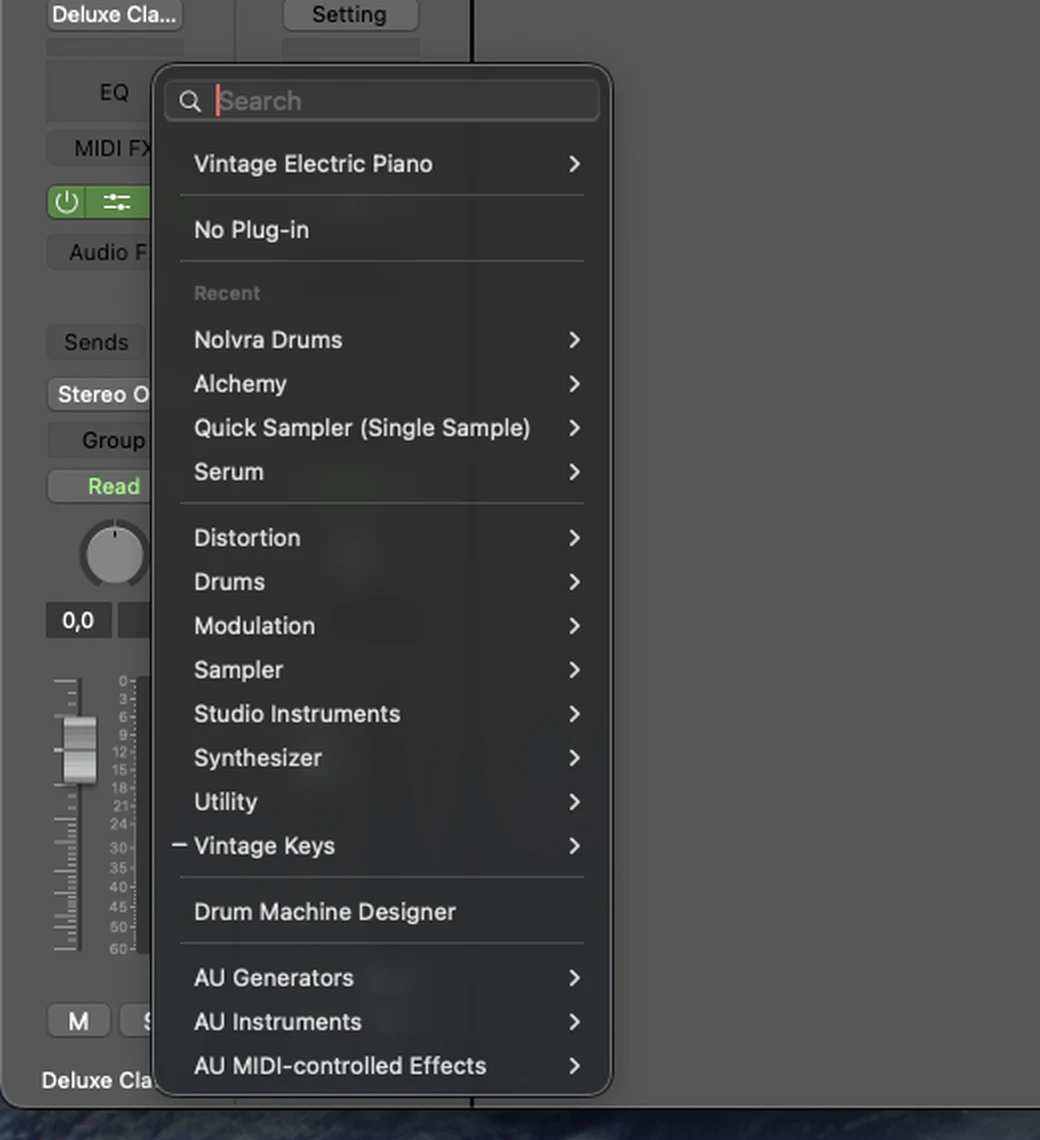
Click the instrument slot in the channel strip and choose AU MIDI-controlled Effects, then Nolvra, then Nolvra PRISM PRO. The slot's search field is faster: type PRISM PRO and it is the only result.
Point the side chain at the vocal
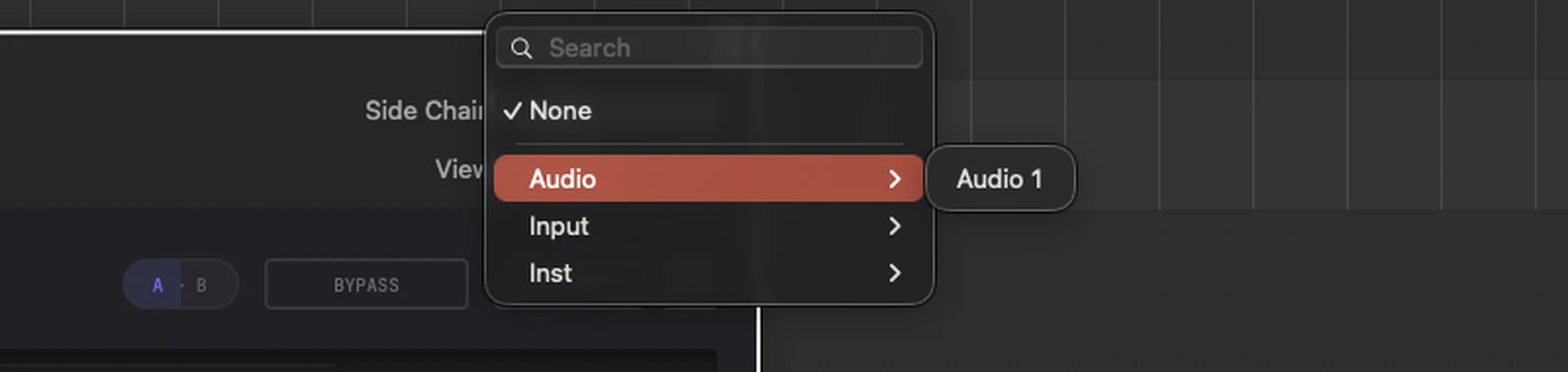
At the top right of the plugin window, open Side Chain and choose the audio track carrying the voice, listed under Audio. That is the input PRISM PRO listens to; the MIDI on the instrument track is what plays the pitch.
Mind the dry track
The vocal track keeps playing its own output, because a side chain is a tap rather than a re-route. If you only want the talkbox, mute the vocal track or pull its fader down.

Logic Pro: without MIDI it is simpler
If you are not playing the pitch, none of the above is needed. Insert Nolvra PRISM PRO in the Audio FX slot of the vocal track, exactly as you would insert a compressor, and sing. The instrument-track route exists only to give the plugin a MIDI input.
FL Studio
Let FL find PRISM PRO first
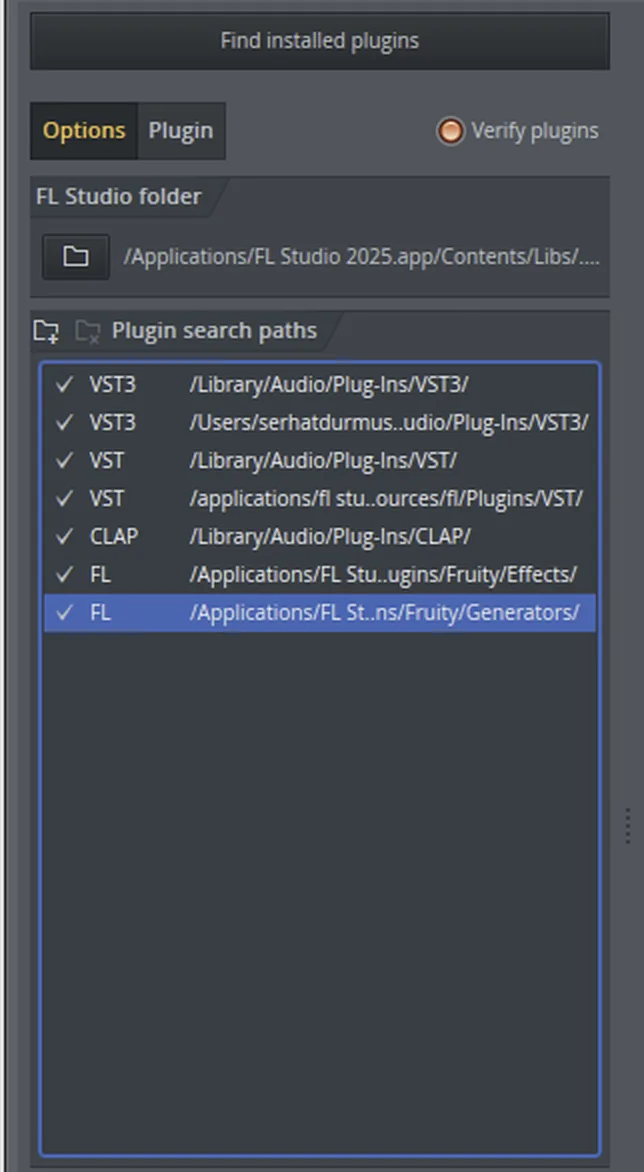
FL does not scan for new plugins on its own, so a plugin installed after FL was last opened is not in its database and does not come up in the picker. Open FL's Plugin Manager, press Find installed plugins and let the scan finish. Until it does, searching for PRISM PRO or for Nolvra returns nothing, which reads like a failed install and is not one. On macOS FL takes PRISM PRO as an Audio Unit: the wrapper names the format itself on the page you are about to open.
Put PRISM PRO on the vocal insert
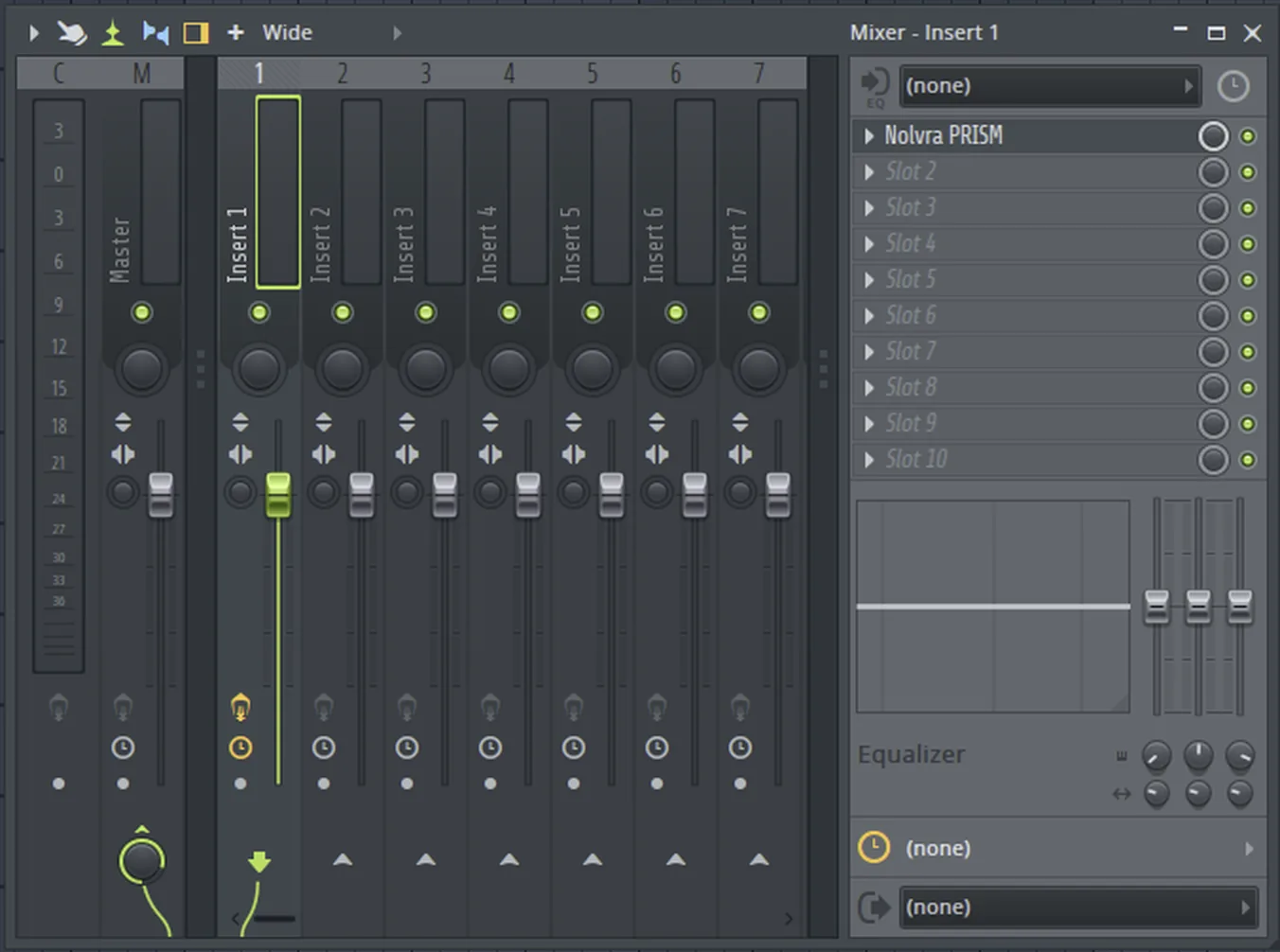
In the mixer, select the insert your vocal is routed to and load Nolvra PRISM PRO into one of its effect slots. PRISM PRO is an effect, so it hears whatever that insert carries, exactly as a compressor there would.
Give the plugin a MIDI input port
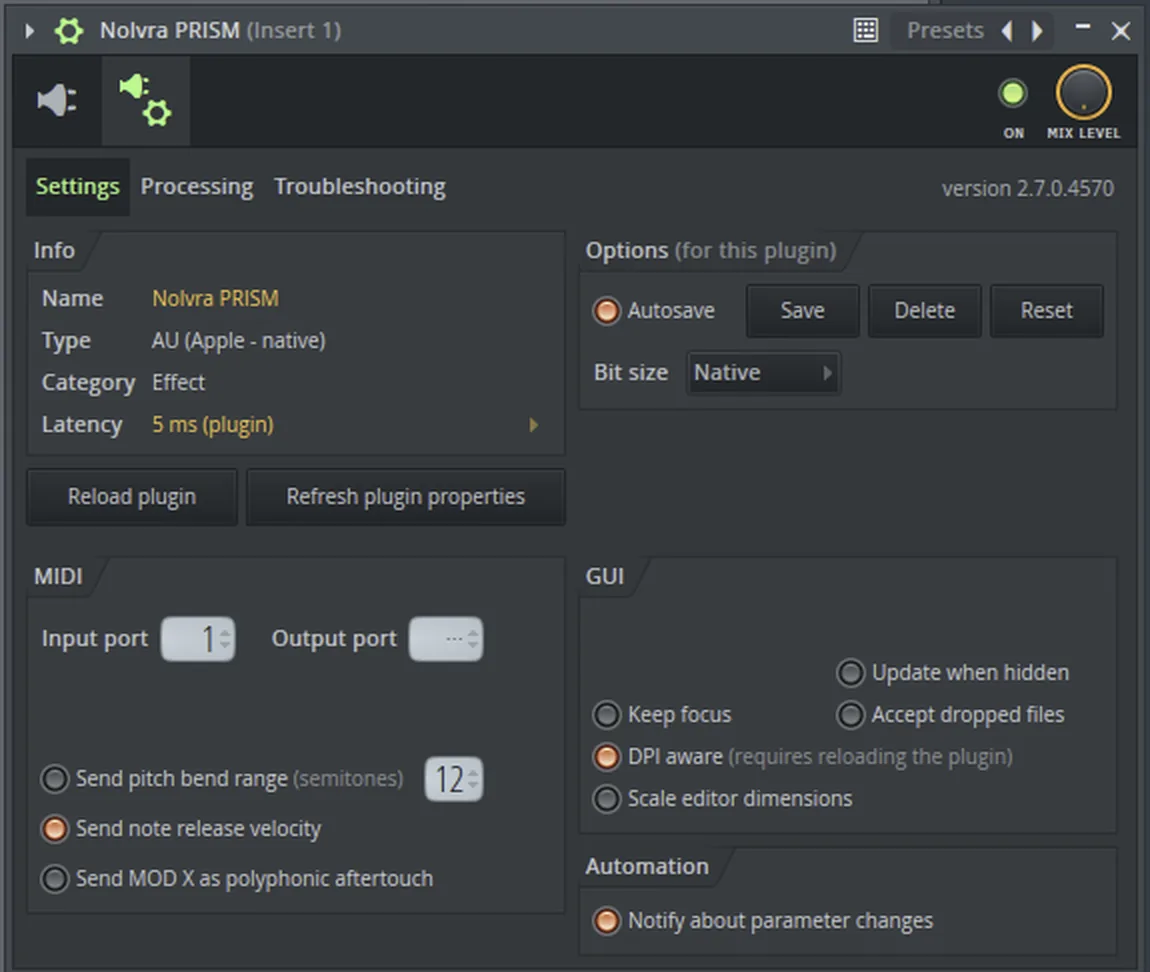
Open the plugin's own settings page: the cog at the top left of the PRISM PRO window, beside the speaker. On the Settings tab there is a MIDI panel with an Input port field, blank until you set it. Set it to 1. That number is the entire address, and nothing else on the page needs touching.
Add a MIDI Out channel on the same port
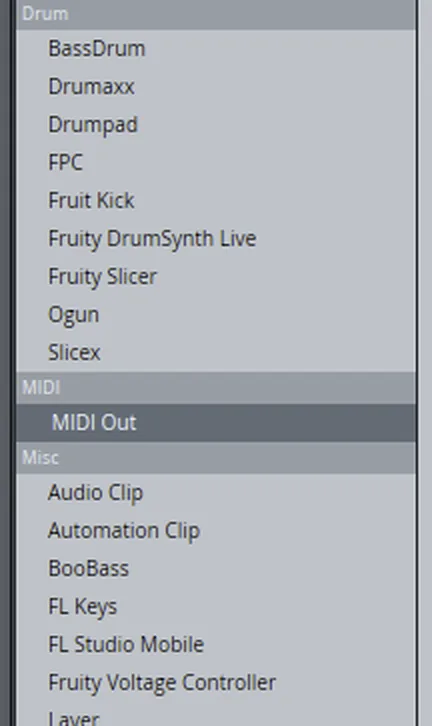
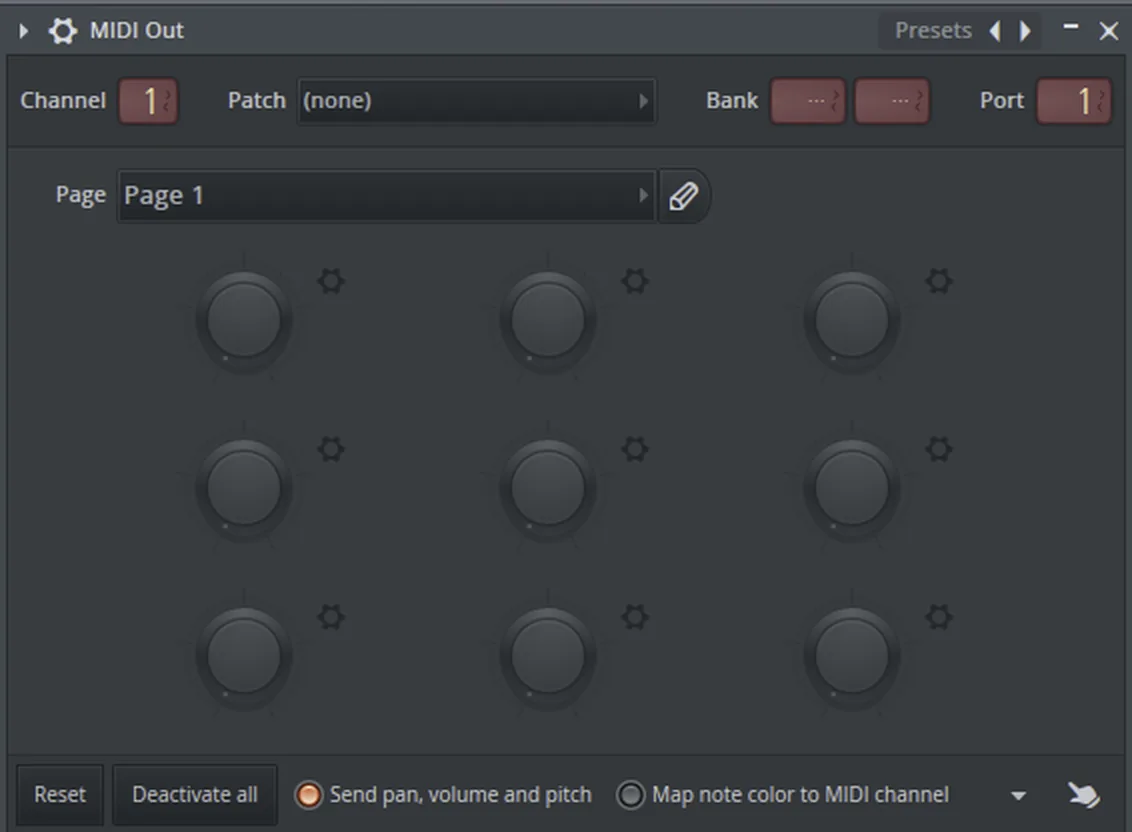
In the channel rack, add a channel and pick MIDI Out from the MIDI group. Open it and set its Port to the number you just gave PRISM PRO, 1. Channel stays at 1.
Play it
Select the MIDI Out channel and play. The source line inside PRISM PRO names MIDI, and the line follows the keyboard instead of the voice.
FL Studio: the halves are two numbers
FL has the same two halves as everything else, but neither half is a list of devices. The plugin names the port it listens on, the MIDI Out channel names the port it sends to, and the route exists when the two numbers agree. So when notes are not arriving in FL there is no routing menu to re-read: the check is whether the number on the wrapper's Settings page is the same as the number on the MIDI Out channel.
The four hosts below were not done here
Live, Logic and FL Studio above were each done on a machine, step by step, and the pictures are of that machine. The four that follow are not installed here, so what is written for them is the shape of the route rather than a route we watched work, and there are no pictures for them, because a picture of someone else's screen would say we had been there. Read them as a starting point rather than a recipe.
Two things carry across all four. PRISM PRO has to be on the channel that already carries the voice, and the notes have to reach the device rather than the channel. The source line inside PRISM PRO is the test in every host: it names MIDI the moment a note actually arrives, and if it never changes, the notes stopped short.
Cubase, untested here
Put PRISM PRO on the vocal channel
Insert Nolvra PRISM PRO into an insert slot of the audio channel carrying the voice, the same way you would insert any effect.
Look for PRISM PRO in a MIDI track's output list
Create a MIDI track and open its output routing. Where a host can do this at all, plugins that accept MIDI appear in that list next to the hardware and instrument outputs, so the PRISM PRO instance on the vocal channel is the entry to look for.
Read the source line
Play. If PRISM PRO's source line names MIDI, the route is made. If it does not, the notes reached the track and stopped there.
If the list does not offer PRISM PRO
Menu wording and routing behaviour move between Cubase versions, so treat the names above as a description of the two halves rather than a path to click. If your version does not offer a plugin as a MIDI destination, this route is not available to you there, and PRISM PRO still works following the voice with no MIDI at all.
Studio One, untested here
Put PRISM PRO on the vocal channel
Insert Nolvra PRISM PRO on the audio channel carrying the voice.
Send an instrument channel to it
Add an instrument channel and open its output list. Plugins that accept MIDI are expected to appear there alongside the instruments, so the PRISM PRO instance is what to select.
Read the source line
Play the instrument channel and watch PRISM PRO's source line. MIDI means the notes arrived.
If the instance is not in the list
The names here are ours rather than measured, and they change between Studio One versions. If no plugin appears as a possible instrument output in your version, the route is not open there, and PRISM PRO still follows the voice without it.
Reaper, untested here
Put PRISM PRO on the vocal track
Add Nolvra PRISM PRO to the FX chain of the track carrying the voice.
Get MIDI into that same track
Reaper carries MIDI through a track's FX chain rather than around it, so the notes do not need a plugin named as a destination: a MIDI item on that track, or a send from another track into it, is expected to be enough.
Read the source line
Play and watch PRISM PRO's source line for MIDI.
If nothing changes
Reaper offers several routes to the same place and the wording differs between versions, so the description above is a starting point rather than a measured path. If the notes are not arriving, the thing to check is whether they are reaching the track PRISM PRO is on rather than a track next to it.
Bitwig, untested here
Put PRISM PRO on the vocal track
Add Nolvra PRISM PRO to the device chain of the track carrying the voice.
Bring the note signal to that chain
In Bitwig a note signal is a signal of its own, so the notes have to be carried into the chain PRISM PRO sits in: a device of the note receiver kind, or the track's own note input, is where to look.
Read the source line
Play and watch PRISM PRO's source line for MIDI.
If the notes do not arrive
Device names and note routing in Bitwig differ by version, and none of this was tried here, so treat it as the shape of the answer. As everywhere else, PRISM PRO needs no MIDI to work: the engine follows the voice on its own.
Where to tell us it is wrong
If one of the four above is wrong in your version, that is worth knowing, and a correction with the real menu name is more useful to us than a bug report. Anything we can reproduce here gets pictures and moves up into the tested half of this article.
Still stuck?
Nothing here matching? Write to a person.