Using Miles
Asking and stopping, attaching a bounce or a picture, the ear, the eye, numbers on request and how Miles reads your chords.
One panel, three senses
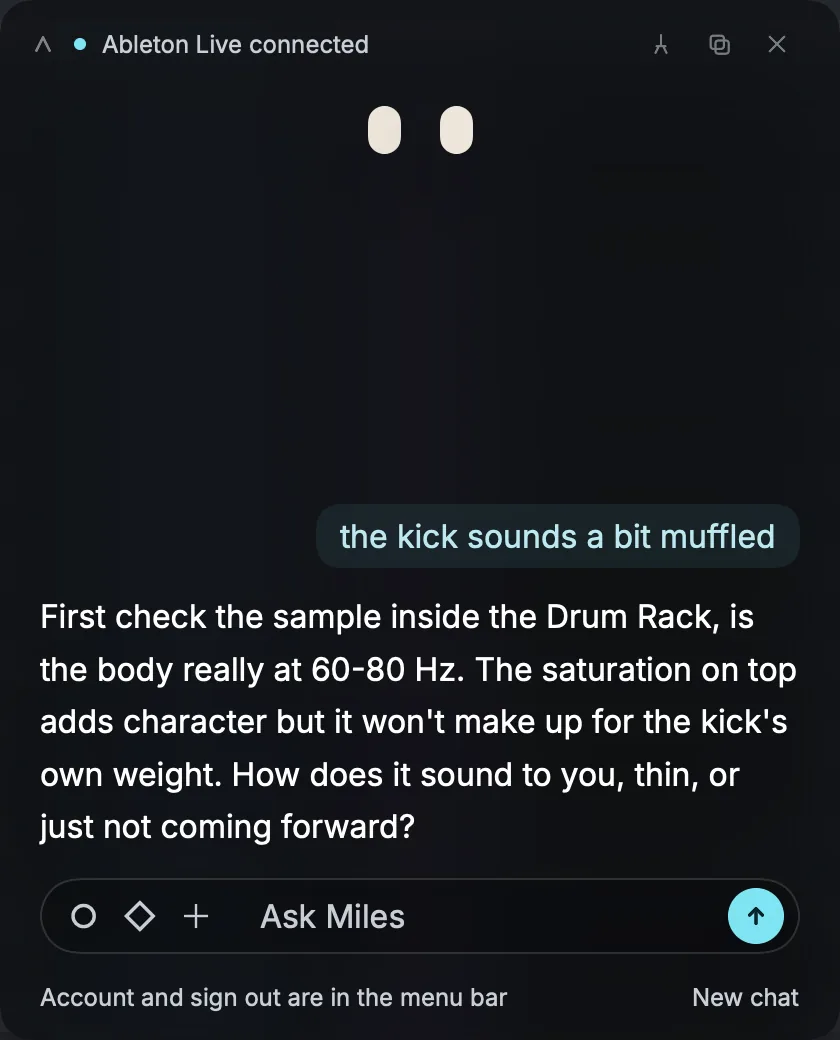
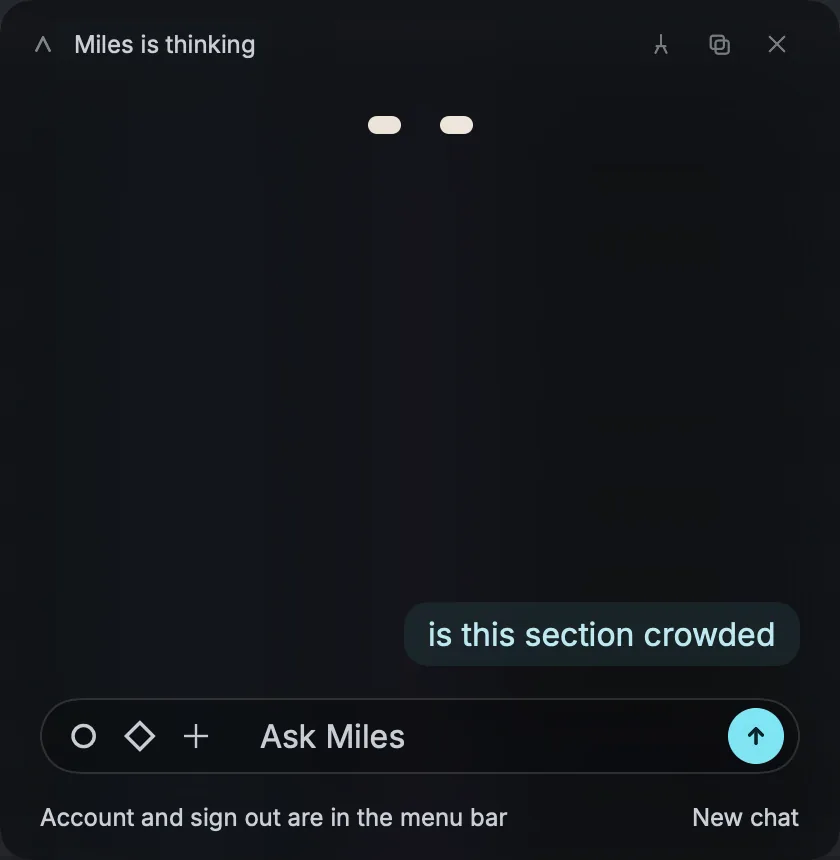
Everything happens in one small panel: you type, Miles answers. Around the field sit three buttons for the three things Miles can do besides reading your words: the circle is the ear, the diamond is the eye, and the plus attaches a picture of your DAW window. The ear and the eye stay off until you turn them on.
Asking a question
Type and send
Type into the Ask Miles field and press send. Miles answers in the language you wrote in, in plain text and short, around a hundred and twenty words, unless you ask for more. If an answer runs out of room it says so: write go on and it continues.
Stop an answer
While Miles is answering, the send button turns into Stop. On a Mac, Esc does the same. Stop before the first word arrives and your message and its attachments go back into the field. Stop halfway and what was written stays, marked stopped here. On Windows, Esc closes the panel, so use the Stop button.
Attach a bounce
Drag an audio file onto the panel; it says Drop a bounce while you hold it there. WAV, AIFF, MP3, M4A and FLAC work, up to 15 minutes. Miles measures the file on your computer before it answers.
Attach a picture of Live
The plus button captures the Ableton Live window and attaches it to your next message. If a plugin window is open in front, it captures that instead. Nothing is sent until you press send, and a picture you remove is gone; it is never written to disk or to your history.
Start over
New chat at the bottom of the panel clears the conversation; it asks once before it does. Your history is kept on your computer, separately for each account. Miles's server keeps no conversations.
The ear
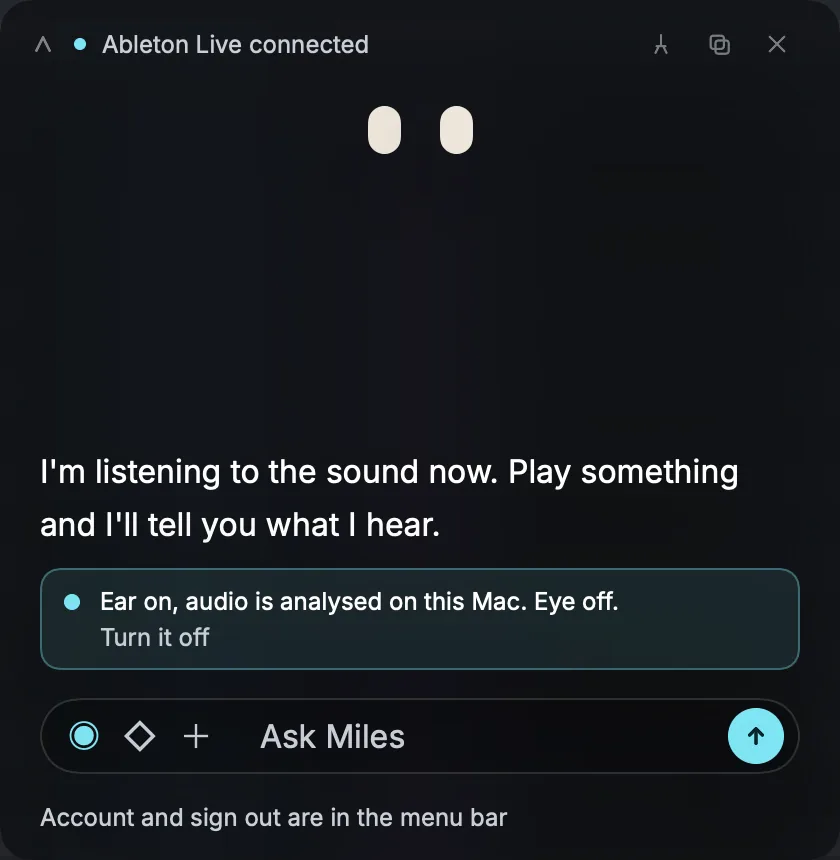
The circle button is the ear. Turn it on and Miles listens to what your DAW is playing, so it can tell you what your track actually sounds like rather than guessing from its name. The audio is analysed on your computer and never leaves it; only the readings travel with your question.
The first time you turn it on, a Mac asks for permission to capture system audio. A small note in the panel then says what is on, for example Ear on, audio is analysed on this Mac, with a link to turn it off and a cross to hide the note. Settings can show the note again.
On Windows the ear cannot hear an ASIO audio interface. If Miles says it cannot hear your DAW, switch Live's driver to WASAPI, or write to miles@nolvra.com.
The eye
Turn it on
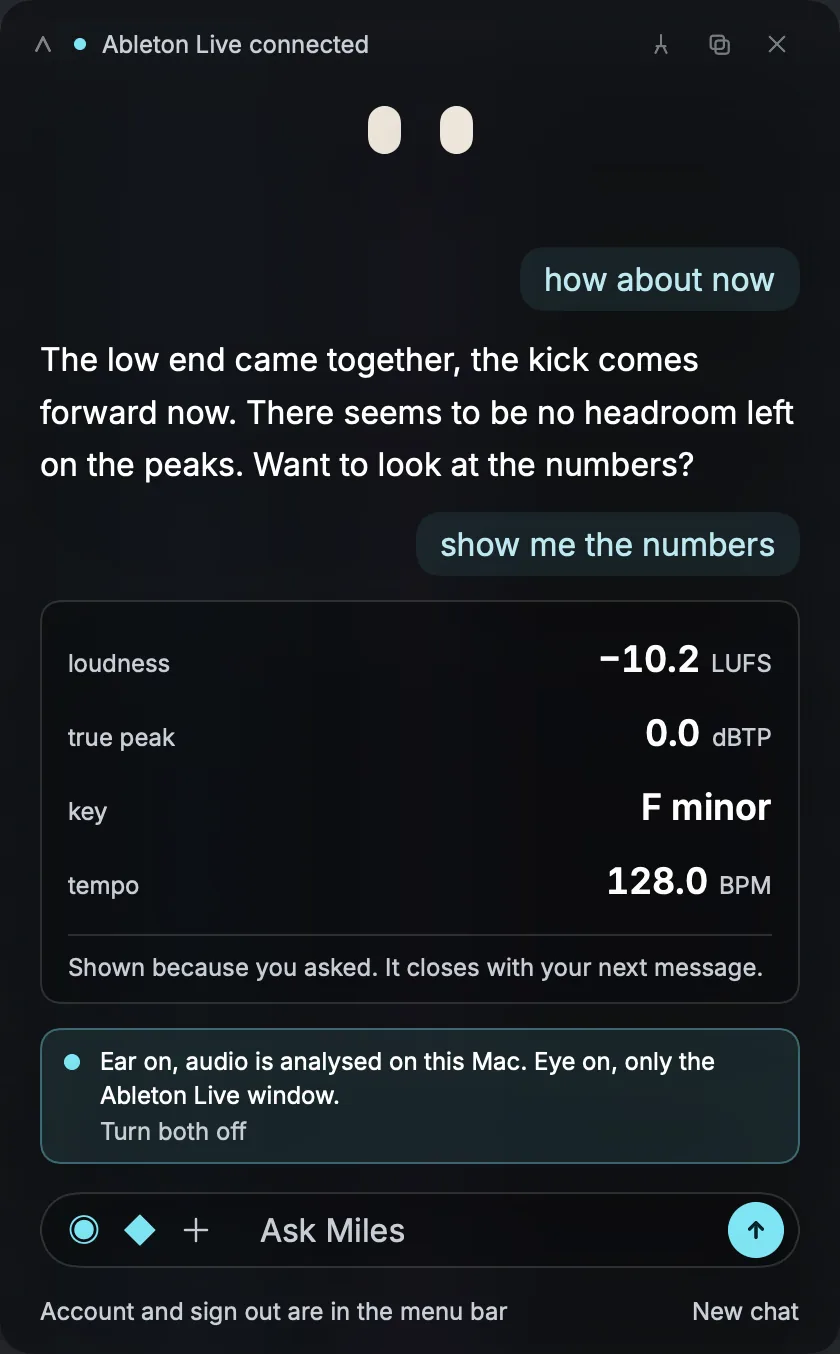
The diamond button is the eye. With it on, Miles looks at your DAW window, and only that window, when your question needs it: one still picture, never video, never the rest of your screen. The shape tells you its state: an outline when it is off, filled when it is watching, a question mark when it needs you to choose a window, an exclamation mark when it needs permission.
Allow Screen Recording on a Mac
The first time the eye looks, macOS asks for Screen Recording permission. If you said no, open System Settings, Privacy and Security, Screen Recording, and turn on Nolvra MILES. The eye switches itself back on once macOS allows it; there is nothing to restart. Windows has no permission step.
Choose the window
If more than one DAW window is open, click the eye and pick one under Which window should Miles watch?, or choose Follow the active DAW. Right-click the eye for Choose window and Follow the active DAW window at any time. The list shows each app's name and window size, never window titles. On Windows there is no picker: close the window you do not want Miles to watch, and bring Live back if it is minimised.

Numbers when you ask for them
Miles talks in words by default. Ask for the numbers and a readings box opens above the field, with loudness, true peak, key and tempo from what it heard. The box says Shown because you asked. It closes with your next message, and it does.
Chords and key
With the bridge connected, Miles reads the notes of one clip: the clip open in Detail view, or else the Session slot you have highlighted, up to 512 notes. It works out the chords and the key on your computer, and only those, never the notes themselves, go with your question. When the ear is on, the key it hears wins over the key it works out from the notes. So you can ask whether a chord fits, and Miles can tell you that it does, or which one does not. There is nothing to set up beyond the bridge.
Settings
- Open them with Command and comma on a Mac, or from the menu bar or tray menu.
- Account: who you are signed in as, and Sign Out.
- Ear and eye: a switch for each, the Screen Recording state with a button that opens System Settings, and Show the ear and eye note in the panel.
- Shortcut: the key that opens Miles from any app.
- About: the version, which is worth sending along when you write to us.
- On Windows also: Start Miles when I sign in to Windows.
Still stuck?
Nothing here matching? Write to a person.