CLINCH quickstart
Put CLINCH on a bus, start from one of the 48 presets, set THRESHOLD by the GR reading on the screen, then keep the low end from pumping with the sidechain filters. The first pass through the VCA bus compressor, the screen, presets of your own and what to do when something looks wrong.
What CLINCH is
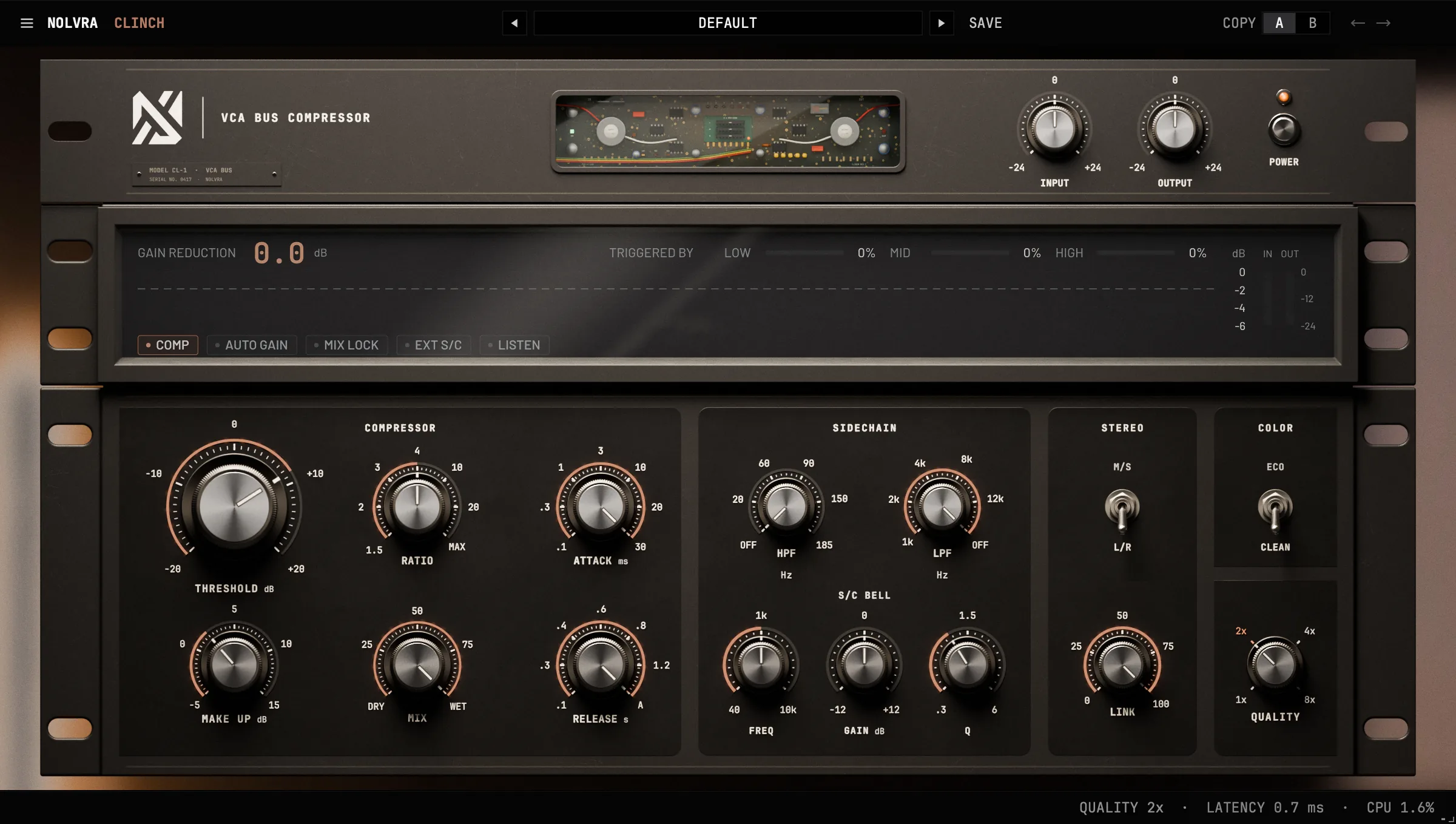
CLINCH is a VCA bus compressor for drum buses, mix buses and groups. Its screen shows how much it is taking, over the last four seconds, and which part of the spectrum is making it react, and a sidechain section lets you change what it reacts to.
It runs as VST3 and Audio Unit on macOS 11 or later, natively on Apple Silicon Macs, and as a VST3 on Windows 10 or 11 (64-bit). There is no AAX version. Signing in to Nolvra Hub with All-Access, or a CLINCH license key, is required to use the plug-in.
Your first pass
Install it, then unlock it
The Nolvra Hub installs CLINCH and keeps it updated. On macOS everything lands in your home folder, so no admin password is asked for; on Windows the VST3 goes into C:\Program Files\Common Files\VST3 and the setup asks for administrator rights. Rescan plugins in your DAW afterwards if CLINCH does not appear on its own. Either of two things unlocks it. An active All-Access membership on the account you are signed into in the Hub needs no key. A CLINCH license key, which reads CLINCH-XXXX-XXXX-XXXX, goes into the field under BOUGHT CLINCH ON ITS OWN? on the activation screen: type it and press ACTIVATE while you are online. A key covers two machines. The 7-day trial opens CLINCH the way a membership does, with no card: start it in the Hub or on the ALL-ACCESS tab of your account page on nolvra.com.
Put it on a bus
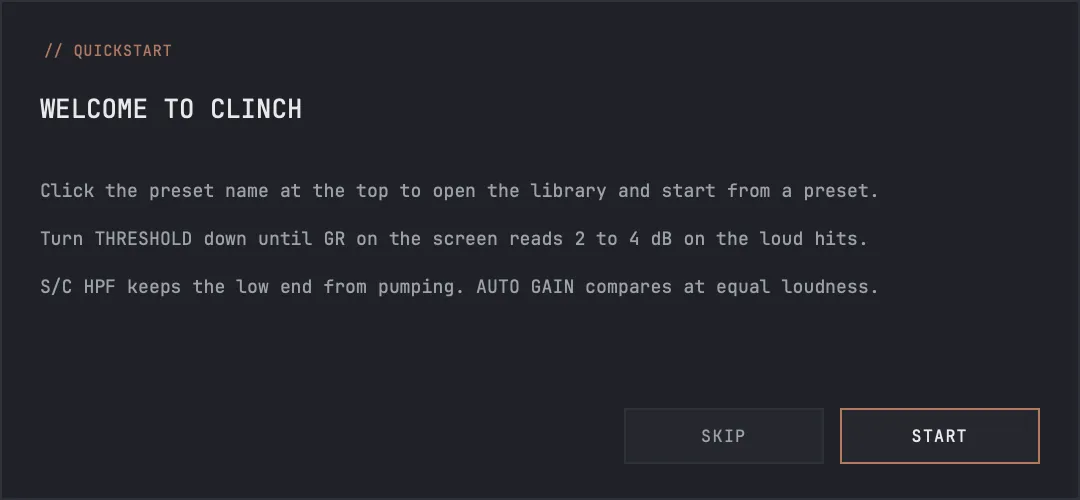
A drum bus, a mix bus, a vocal or instrument group. CLINCH runs on stereo tracks and on mono ones. The first time it opens, a QUICKSTART card sums up the next three steps; SKIP or START closes it, and QUICKSTART in the menu at the top left brings it back. A new copy opens on DEFAULT: 4:1, 30 ms attack, AUTO release and a gentle 1 to 2 dB of gain reduction on a full mix.
Start from a preset
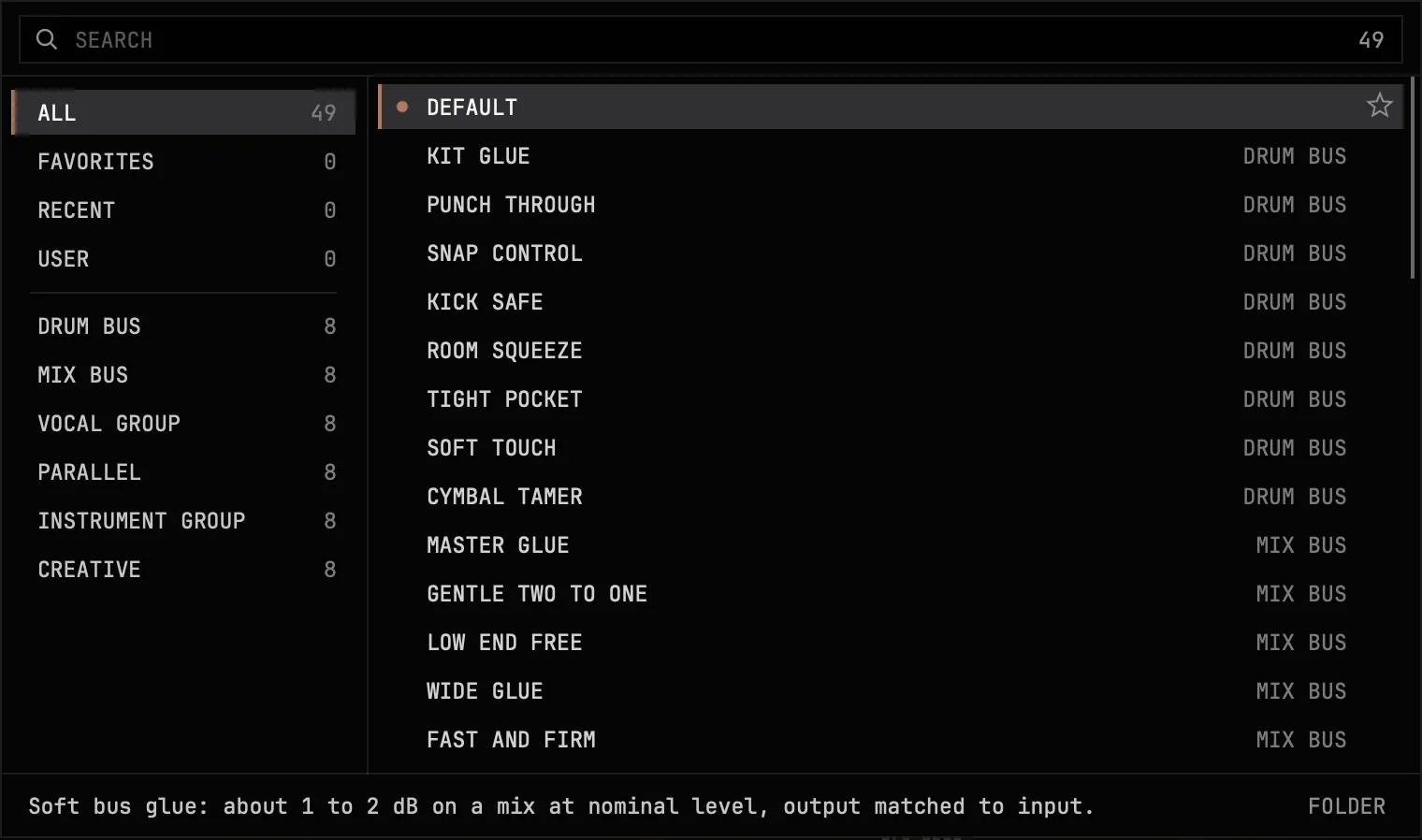
Click the preset name to open the library and pick a preset; the arrows either side of the name step through them without opening it. Presets do not change QUALITY, so the latency stays where it is while you browse.
Set the amount by the GR reading
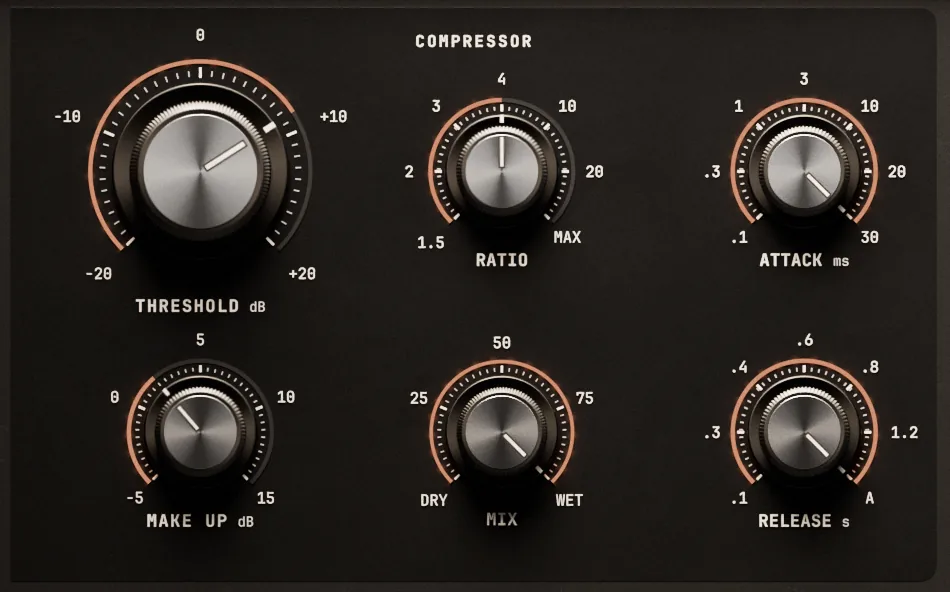
Turn THRESHOLD down until GAIN REDUCTION on the screen reads 2 to 4 dB on the loud hits. RATIO sets how firmly it holds, from 1.5:1 to 20:1 and then MAX, the hardest step. MAKE UP brings the level back up.
Set the timing
ATTACK, from 0.1 to 30 ms, decides how much of each hit gets through before CLINCH grabs it. RELEASE, from 0.1 to 1.2 s, decides how fast it lets go; AUTO follows the material and is the place to start.
Keep the low end from pumping
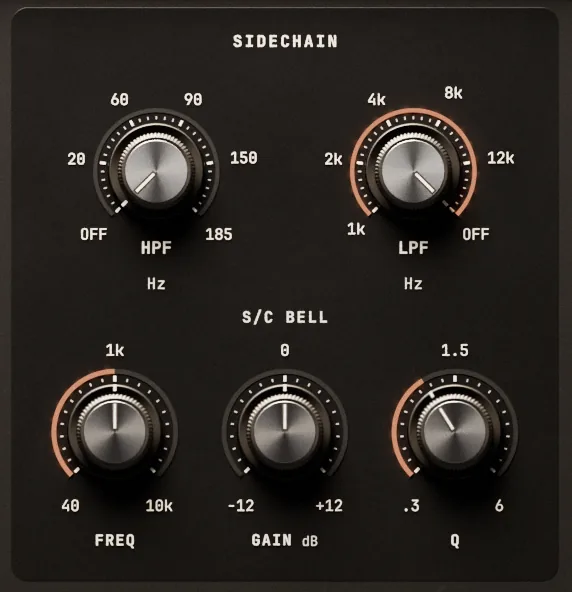
If the screen shows LOW doing most of the triggering and the bus pumps with the kick or the bass, raise S/C HPF. It removes bass from what the detector hears, not from your audio. Press LISTEN to hear that signal while you set it, and turn LISTEN off before you print.
Compare at equal loudness
Turn on AUTO GAIN, then switch COMP off and on: AUTO GAIN keeps the compressed signal at the loudness of the input, so louder does not win the comparison. COMP switches the compression off inside CLINCH and keeps the latency, so the comparison does not jump.
The controls on the face
- ControlWhat it does
- THRESHOLDWhere compression starts, -20 to +20 dB. Lower means more gain reduction
- RATIO1.5:1, 2:1, 3:1, 4:1, 10:1, 20:1 or MAX
- ATTACK0.1, 0.3, 1, 3, 10, 20 or 30 ms
- RELEASE0.1, 0.3, 0.4, 0.6, 0.8 or 1.2 s, or AUTO
- MAKE UPLevel after compression, -5 to +15 dB
- MIXDry to wet, for parallel compression
- S/C HPF, S/C LPFFilter what the detector hears, not your audio. HPF OFF to 185 Hz, LPF 1 kHz to OFF
- S/C BELLOne band of what the detector hears: FREQ 40 Hz to 10 kHz, GAIN -12 to +12 dB, Q 0.3 to 6
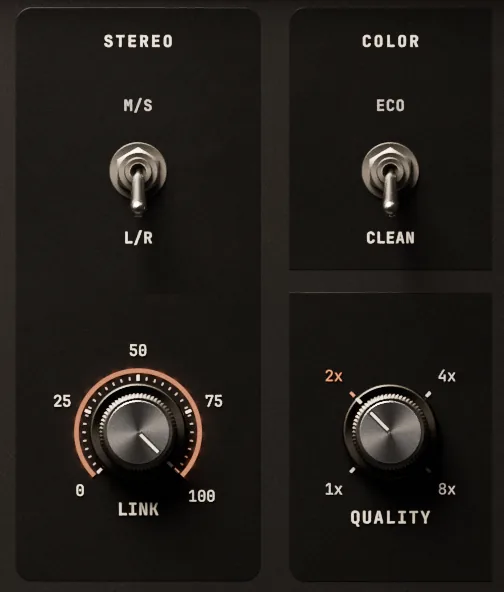
- STEREOL/R or M/S
- LINKFrom fully linked to two separate channels
- COLORCLEAN, or ECO for a gentle saturation
- QUALITY1x, 2x, 4x or 8x oversampling. 2x by default
- INPUT, OUTPUTTrims before and after CLINCH, -24 to +24 dB
- POWERSwitches the whole plug-in in or out, click-free
- COMPSwitches the compression off inside CLINCH, keeping the latency
- AUTO GAINKeeps the output at the loudness of the input
- MIX LOCKKeeps MIX where it is when you load a preset
- EXT S/CThe detector listens to the sidechain input instead of the track
- LISTENPlays what the detector hears instead of your track
Turning the controls
Drag a knob up or down to turn it; the mouse wheel turns it too. Alt + click puts a control back to its default. To type an exact value, double click the knob, type the number and press Return; Escape cancels. The value box understands units, as in -6 dB, 250 Hz, 1.2k, 10 ms, 0.4 s, 4:1, auto, max or off.
Switching COMP, LISTEN, AUTO GAIN, STEREO or QUALITY while audio plays does not click. QUALITY changes the latency, though, so set it before you print.
What the screen tells you
GAIN REDUCTION is how much CLINCH is taking right now, in dB. Behind it the last four seconds scroll in from the right: your input level in grey, the output in front of it, the gain reduction line coming down from the top, and a dashed line at the threshold that moves when you turn THRESHOLD. The IN and OUT meters sit on the right.
TRIGGERED BY splits what is making CLINCH react into LOW, MID and HIGH. If LOW is doing most of it and the mix pumps, raise S/C HPF. The history stops scrolling when there is no signal and the transport is stopped.

Keying CLINCH from another track
CLINCH has a second, stereo input for a sidechain. Route the triggering track to it in your DAW, then turn on EXT S/C: from then on the detector listens only to that input, through the same S/C HPF, S/C LPF and bell. If nothing arrives there, the EXT S/C lamp blinks and the screen reads NO SIDECHAIN INPUT, and CLINCH does not compress until signal arrives. The warning changes nothing in the sound. The article Installing and running Nolvra CLINCH, under Installation and activation, shows where the sidechain menu is in Logic Pro and Ableton Live.

POWER and BYPASSED
POWER, top right, switches CLINCH in and out without a click. With it off, the signal passes through untouched at the same latency, the panel dims and the screen reads BYPASSED until you turn POWER on again. Your DAW can automate it.

Presets
The library opens from the preset name. SEARCH filters as you type. On the left: ALL, FAVORITES, RECENT, USER, then the six factory groups of eight: DRUM BUS, MIX BUS, VOCAL GROUP, PARALLEL, INSTRUMENT GROUP and CREATIVE. Click a row to load it; the library stays open so you can audition. The star at the right end of a row makes it a favourite, and RECENT lists what you loaded last, newest first. The line along the bottom describes the selected preset. In the library the arrow keys move the selection, Return loads and closes, and Escape clears the search and then closes.
Saving a preset of your own
Save it
Click SAVE in the top strip, type a name and press SAVE. It appears under USER in the library.
Rename, delete, find the files
RENAME and DELETE in the library work on the selected user preset; DELETE asks first and cannot be undone. FOLDER opens the folder your presets are kept in: Nolvra/CLINCH/Presets in your Documents folder, one .clinchpreset file each. The library reads that folder every time it opens, so a file you copy there appears without a restart. IMPORT PRESET in the menu at the top left brings a single file in.
Keep MIX while you browse
Turn on MIX LOCK and loading a preset leaves MIX where you set it, so a parallel blend survives the preset change.
The top strip
A and B hold two settings, and COPY copies the current one to the other slot; both are saved with your project. The arrows on the right undo and redo; Cmd + Z (Ctrl + Z on Windows) undoes too, and Shift + Cmd + Z or Cmd + Y redoes, when your DAW passes the keys to the plug-in.
The menu at the top left holds // SIZE (100 %, 125 %, 150 % and 200 %), IMPORT PRESET, OPEN PRESET FOLDER, RESET ALL PARAMETERS and QUICKSTART. You can also drag the bottom right corner to any size from 50 to 200 %; 100 % is 1200 by 679 points. A size bigger than your screen is shown as SCREEN TOO SMALL and cannot be picked. The size is saved with your project, and the last size you chose is the one new copies open at.

When something looks wrong
- CLINCH is not in your DAW: rescan plugins, and check that your host loads the format you installed. Logic and GarageBand load only Audio Units, on Windows only VST3 is installed, and there is no AAX version.
- The activation screen covers the window: CLINCH has not found a license on this machine. Sign in to Nolvra Hub with your All-Access account, or type your CLINCH key and press ACTIVATE.
- "Activation limit reached": your key is already active on two machines. Contact support to move it.
- The screen reads NO SIDECHAIN INPUT: EXT S/C is on and nothing arrives at the sidechain input. Pick a source in your DAW, or turn EXT S/C off.
- You hear silence with LISTEN on: EXT S/C is on with nothing routed, so the detector hears nothing. Turn EXT S/C off, or route a source.
- The screen reads BYPASSED: POWER is off. Turn it on.
- The mix pumps with the kick: raise S/C HPF, and check TRIGGERED BY.
- The track got louder or quieter: turn on AUTO GAIN, or set MAKE UP and OUTPUT by ear against COMP off.
What ships
- ItemCLINCH 1.0.0
- TypeVCA bus compressor
- FormatsVST3 and AU on macOS, VST3 on Windows
- SystemsmacOS 11 or later, Apple Silicon · Windows 10 or 11 (64-bit)
- ChannelsStereo, mono, mono to stereo
- LatencyNone at 1x; 35, 41 and 44 samples at 2x, 4x and 8x, reported to your DAW
- Presets48 factory in six groups, plus DEFAULT and your own
- Window50 to 200 %, remembered
- Activationa CLINCH license key on 2 machines, or All-Access through the Hub
- Trial7 days, no card
- ValidationApple auval passes on macOS
Still stuck
Write to support@nolvra.com with your operating system and its version, your DAW and its version, and what you hear or see. A screenshot of CLINCH's window helps. Do not send your license key.
Still stuck?
Nothing here matching? Write to a person.