BRIM quickstart
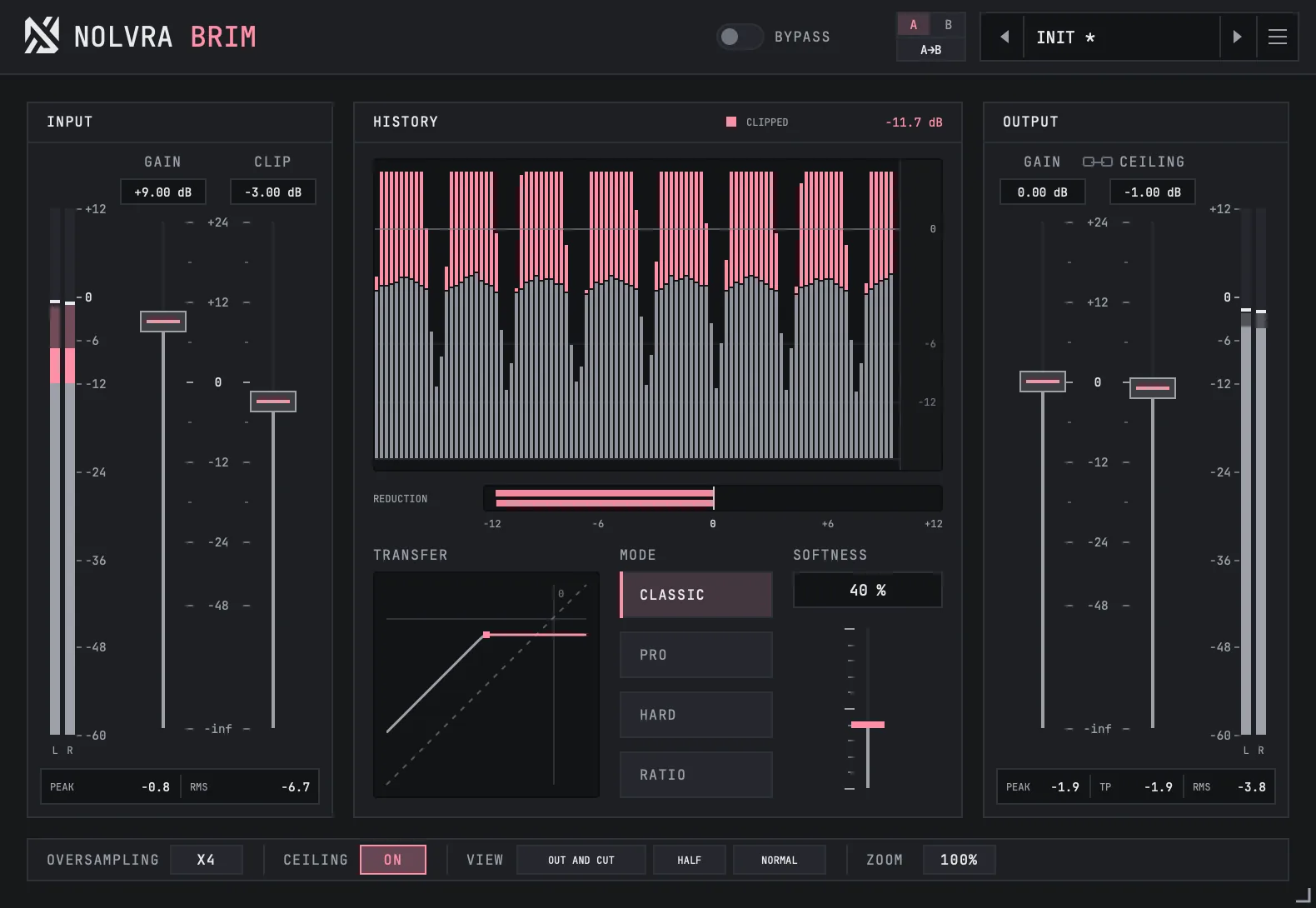
A clip level, four curves, a softness slider and a reading of how many dB came off the peaks. The first useful move is not the curve, it is how hard you drive it.
What BRIM is
BRIM is a clipper for mix and master buses. It cuts the tops off the peaks at a level you set, with one of four curves deciding how the edge of that cut is shaped, and it tells you in numbers how many dB came off. It runs as VST3 and Audio Unit on macOS 11 or later, natively on Apple Silicon Macs, and as a 64-bit VST3 on Windows. There is no standalone app.
What makes the first five minutes different from a limiter is that nothing here is automatic. There is no release and no lookahead: the signal either reaches the clip level or it does not, and the pink in the history shows you exactly what was cut, bar by bar.
Your first pass
Install it, then open either door
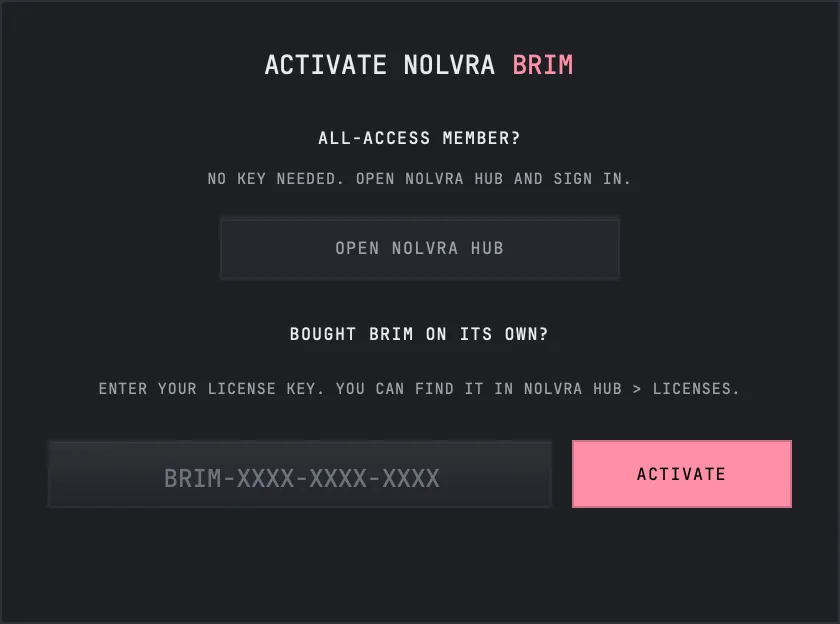
The Nolvra Hub installs BRIM and keeps it updated. On macOS everything lands in your home folder rather than the system one, so no admin password is asked for: the VST3 into ~/Library/Audio/Plug-Ins/VST3 and the Audio Unit into ~/Library/Audio/Plug-Ins/Components. On Windows the VST3 goes into C:\Program Files\Common Files\VST3. Rescan plugins in your DAW afterwards if BRIM does not appear on its own. Two things unlock it and either one is enough on its own. An active All-Access membership on the account you are signed into in the Hub needs no key. A BRIM license key, which reads BRIM-XXXX-XXXX-XXXX, goes into the plugin's activation panel, and that path never touches the Hub: if you bought BRIM on its own, on nolvra.com or from a reseller, type the key, press ACTIVATE while you are online, and you are done. A key covers two machines and does not have to be renewed afterwards. The 7-day trial opens BRIM with no card. You start it in the Hub or on the ALL-ACCESS tab of your account page on nolvra.com, and while it runs BRIM opens on the signed-in machine the way a membership opens it, with no key and no separate activation step. It covers the plugins in All-Access and not the sample packs, it runs once per account and once per machine, and it does not renew. When it ends, BRIM locks and the way on is a membership or a purchase.
Put it where the peaks are
It is an audio effect for a bus: a drum bus, a mix bus or the master. It takes mono or stereo and gives back the same. It reports its latency to your host, so a copy on one bus does not shift that bus against the others; the latency depends on the oversampling and has its own article.
Drive it with GAIN, set the edge with CLIP
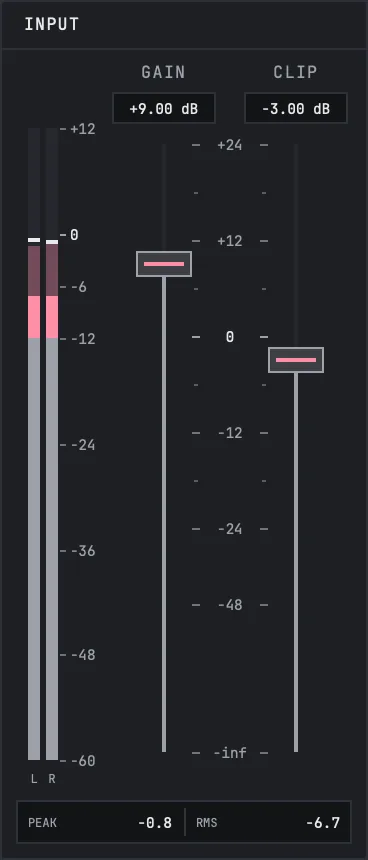
The INPUT panel has two faders. GAIN is how hard you push the signal into the clipper and CLIP is the level the clipping happens at. Both run from -inf to +24 dB and open at 0 dB. Drag to move one, hold Shift for fine steps, double click to put it back to 0 dB, or click the value and type a number. Most of the time you leave CLIP where it is and raise GAIN until the pink tops in the history show the amount of cutting you want. Lowering CLIP does the same job from the other side.
Pick a curve, then a softness
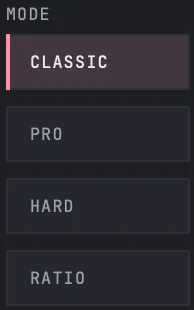
MODE has four cells: CLASSIC, PRO, HARD and RATIO. HARD cuts flat at the clip level. The other three shape the corner, and SOFTNESS, from 0 % to 100 %, decides how much. BRIM opens on CLASSIC with softness at 0 %, where CLASSIC, PRO and RATIO all cut exactly like HARD. The curves have their own article.
Bring the level back with the OUTPUT faders
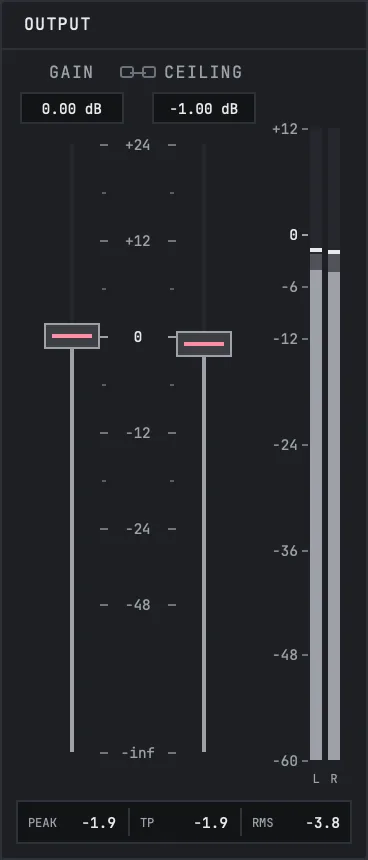
The OUTPUT panel holds GAIN, which sets the level that leaves the plugin, and CEILING, which only acts when CEILING is ON in the settings bar. The small chain between their names links them, so moving one moves the other by the same number of dB.
What you hear
At the defaults, with every fader at 0 dB and nothing reaching 0 dBFS, BRIM passes the signal through unclipped. The moment a peak crosses the clip level it is cut, and how that cut sounds depends on the curve: HARD gives the flat, bright edge, and the softer curves round it off and add some level underneath.
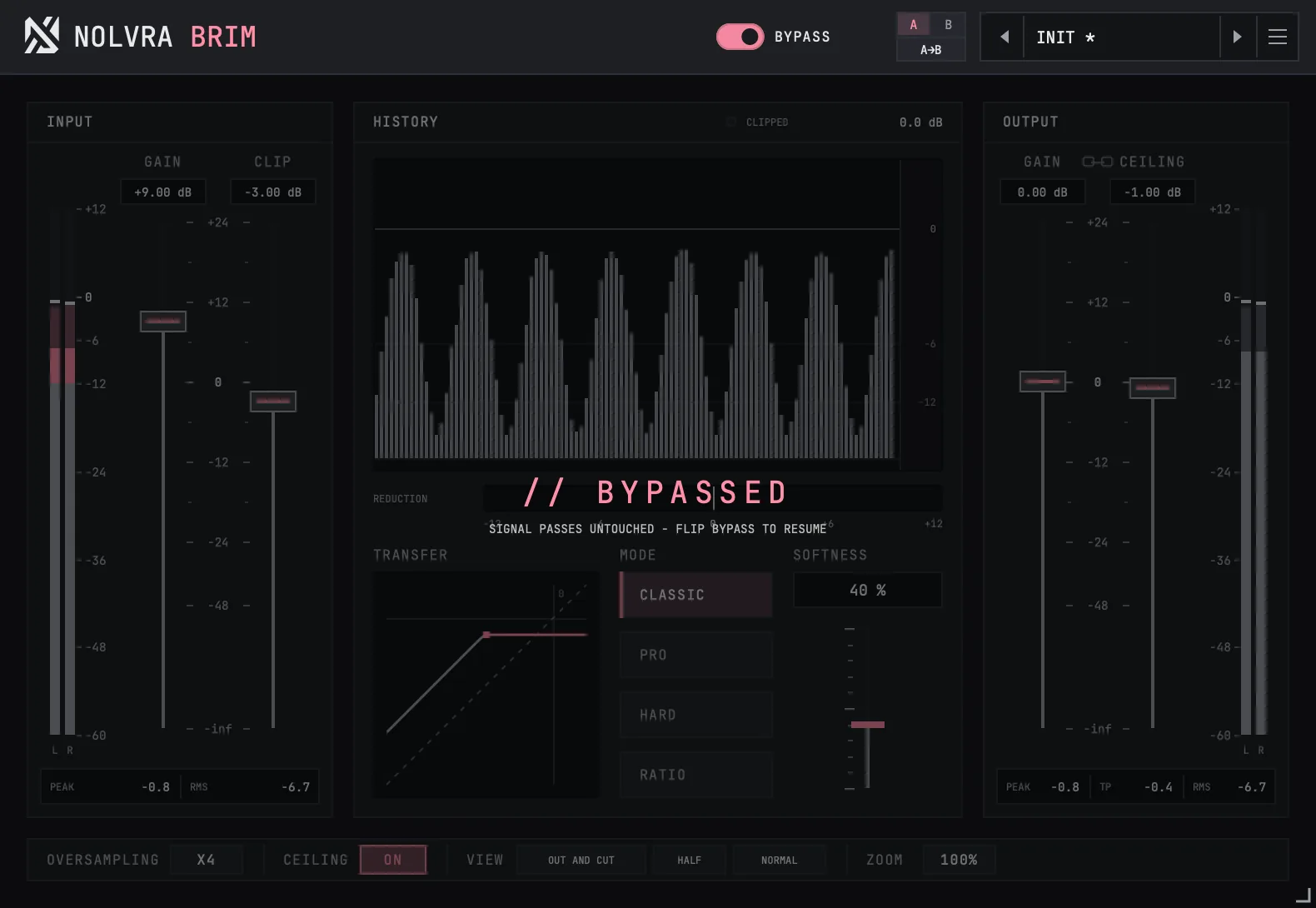
BYPASS, at the top, plays the signal with BRIM out of the path, delayed by the same latency so nothing jumps in time, and the switch crossfades over 10 ms so it does not click. It is the same switch as your host's bypass. While it is on, the face dims and CLIPPED reads 0.0 dB, because nothing is being clipped.
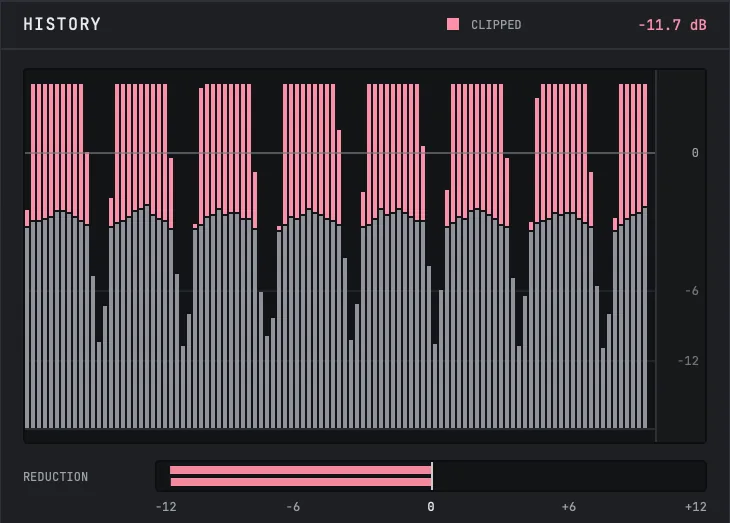
The history scrolls from right to left. In its first view, OUT AND CUT, the grey body is what left the plugin and the pink on top of it is what the clipper took off. If the pink is gone, BRIM is not clipping.
The top strip and the settings bar
The top strip carries BYPASS, the A and B slots, and the preset bar. A and B are two whole settings and you switch between them by clicking the letter; A→B copies the one you are on into the other. They live for the session: they are not saved with your project, and neither bypass nor oversampling is part of them.
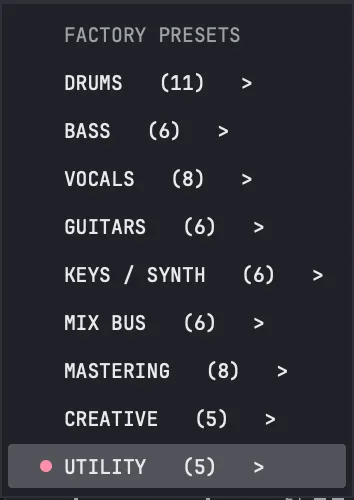
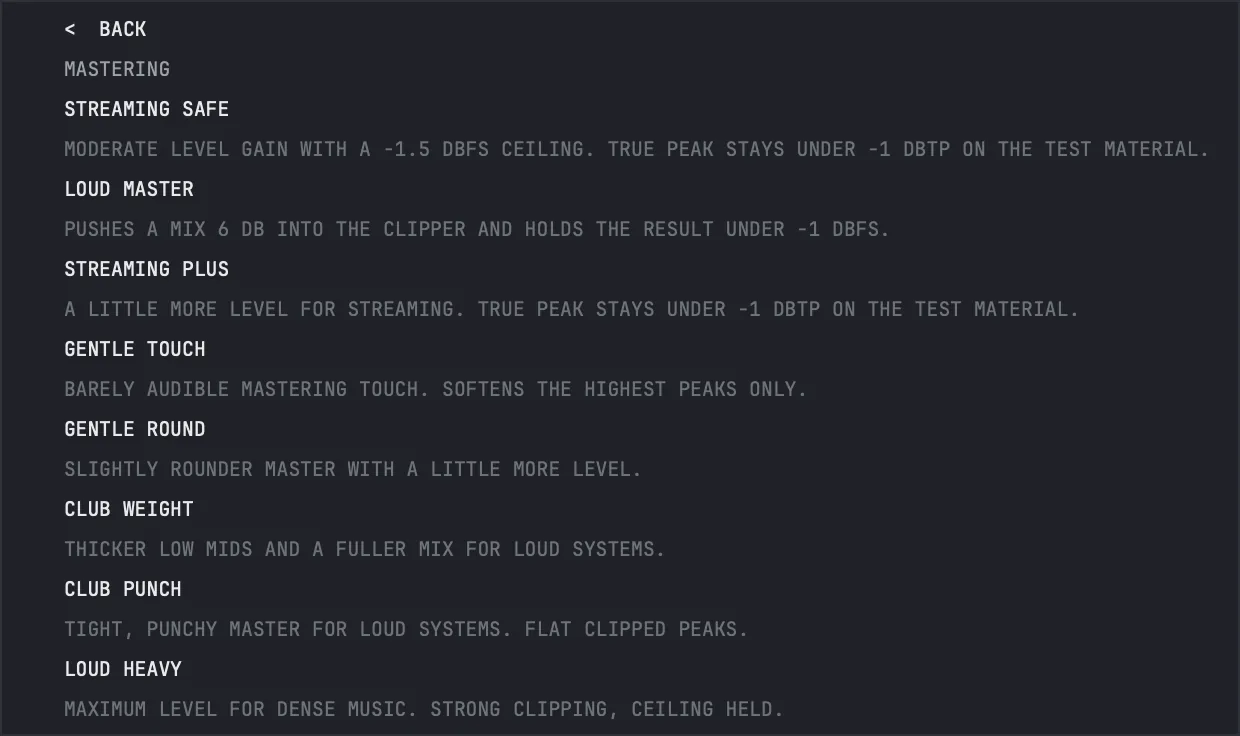
The preset bar walks the factory presets with its two arrows and opens them from the name. There are 61 presets in 9 folders: Drums, Bass, Vocals, Guitars, Keys / Synth, Mix Bus, Mastering, Creative and Utility. Each preset carries a one line note under its name, and a star appears beside the name once you change anything. Their output levels were set so that a preset does not make the material louder or quieter than it came in, unless its note says that is its job. Choosing a preset never changes the oversampling, so it never changes the latency. There is no saving your own presets: the host's own state is where a setting you made lives.
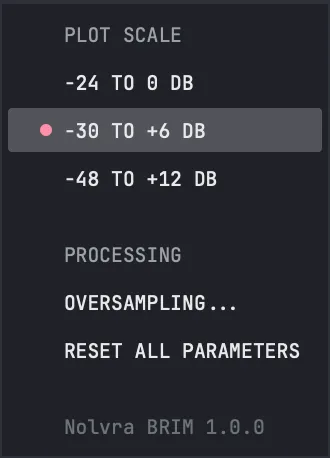
The three lines at the right end open the settings menu: PLOT SCALE for the transfer drawing, OVERSAMPLING..., RESET ALL PARAMETERS, and the version line.
The settings bar along the bottom holds OVERSAMPLING, CEILING, the three VIEW cells for the history and ZOOM. A VIEW cell changes when you click it. ZOOM opens a list from 80 % to 200 %, and the corner handle resizes the window freely with its shape fixed. The size is kept with the project and remembered for the next new copy on that machine.

Things people look for on the first day
- CLIP is the clip level, the parameter your host calls Threshold. GAIN in the INPUT panel is the drive.
- Double click on a fader puts it back to 0 dB. Shift while dragging or scrolling moves it in fine steps.
- At softness 0 %, CLASSIC, PRO and RATIO clip exactly like HARD. If changing the curve does nothing, look at the softness first.
- HARD ignores softness, and the slider dims while HARD is lit.
- With CEILING off, the output can peak a little above the clip level. That is the oversampling filter rebuilding the cut edge, and the ceiling article explains what to do about it.
- Clicking a PEAK, RMS or TP reading, or the CLIPPED number, clears the held values.
- During the 7-day trial BRIM's license status reads TRIAL with the days left, for example TRIAL - 3 DAYS LEFT. When it is over the status reads TRIAL ENDED and BRIM says "Your BRIM trial has ended."
- There is no undo inside the plugin and no way to save your own preset. A/B and your host's undo are the tools for comparing.

What ships
- ItemBRIM 1.0.0
- Curves4: Classic, Pro, Hard and Ratio
- Softness0 to 100 %, opens at 0 %
- Input gain, clip level, output gain, ceiling-inf to +24 dB, all open at 0 dB
- Ceilingoff by default, limits every output sample when on
- Oversamplingx1 to x256, opens at x4, with a separate offline factor
- Latencyreported to the host: none at x1, 64 samples at x2 and x4, 66 to 68 above
- Metersinput and output peak and RMS, output true peak, reduction, clipped dB
- Historythree sources, two scales, three speeds
- Presets61 factory presets in 9 folders
- CompareA and B, for the session
- Window80 to 200 %, remembered
- FormatsVST3 and AU on macOS 11 or later, VST3 on Windows, 64-bit
- Activationa BRIM license key on 2 machines, or All-Access through the Hub
- Trial7 days, no card
Still stuck?
Nothing here matching? Write to a person.