BRIM's oversampling, the render factor and latency
BRIM clips at up to 256 times the sample rate. What each factor costs in latency and CPU, what the separate offline factor is for, and why a preset never moves your latency.
Why a clipper oversamples
Cutting a peak flat creates new high harmonics, and at the normal sample rate the ones above the top of the audio band fold back down as tones that were never in the music. Oversampling runs the clipper at a multiple of the sample rate and filters the result back down, so those harmonics are removed instead of folding.
BRIM opens at x4 and goes from x1, no oversampling at all, to x256. Higher factors cost CPU and a couple more samples of latency, and the useful question is not which one is best but which one is enough for the material.
Setting the factor
Open the menu from the settings bar
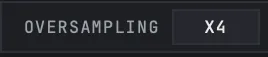
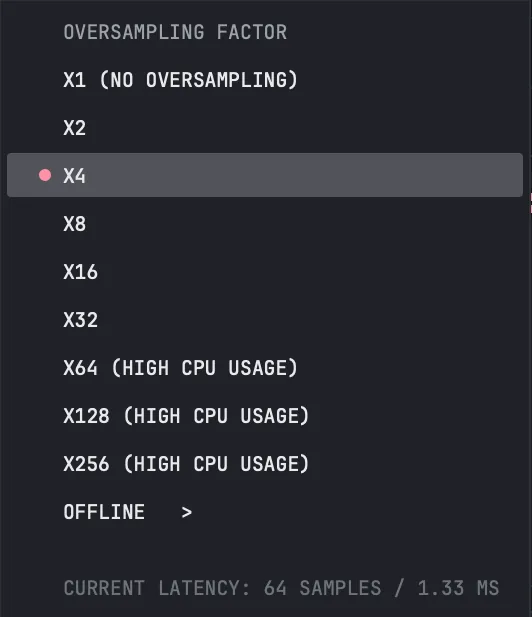
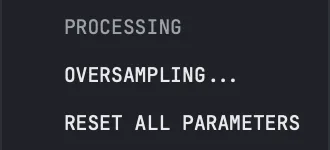
Click the OVERSAMPLING cell in the settings bar, or choose OVERSAMPLING... in the settings menu. The list is headed OVERSAMPLING FACTOR and the factor you are on carries a dot.
Pick the online factor
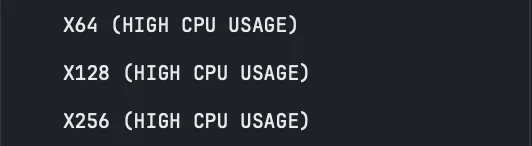
X1 is marked NO OVERSAMPLING, and X64, X128 and X256 are marked HIGH CPU USAGE. The last line of the menu shows the latency at the factor you are on, in samples and in milliseconds at your session's sample rate.
Pick a separate factor for renders, if you want one
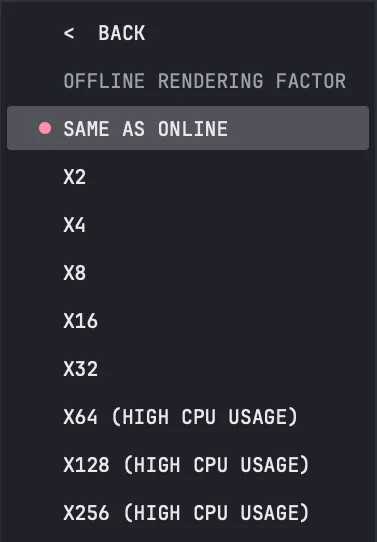
OFFLINE opens a second list headed OFFLINE RENDERING FACTOR. SAME AS ONLINE is the default. Anything else is used whenever your host renders the session faster or slower than real time, so you can play at X4 while you mix and let the bounce run at X64.

Latency
BRIM reports its latency to your host at every setting, and the figure is counted in samples at the session's own rate, so it is the same at 44.1, 48 or 96 kHz. At X1 there is none. X2 and X4 are 64 samples. X8 is 66, X16 is 67, and X32 and everything above it are 68. Going from X4 to X256 adds four samples.
Your host compensates for reported latency, so a copy of BRIM on one bus stays in time with the rest of the mix. Changing the factor changes the figure, and BRIM tells the host the new one.
When the offline factor differs from the online one, the latency reported during the render is the offline factor's.
What it costs
On the machine BRIM was measured on, one stereo copy at X4 used 0.62 % of one core. X16 used 1.66 %, X64 5.94 % and X256 23.1 %, so each step up roughly doubles the cost. Those are PRO's figures; HARD costs less. The rows the menu marks HIGH CPU USAGE are the ones where a session with several copies starts to notice.
Oversampling is not part of a preset, and it is not part of A and B either. Choosing a preset never changes the factor, so it never changes the latency, and loading one in the middle of a playing session will not make your host recalculate its delay compensation. The factor cannot be automated either.
Questions this page answers
- X4 is the default and it is a sensible place to stay. Reach for more when a bright, hard driven source still sounds grainy at the top.
- X1 has no latency and no filtering at all. It suits a chain where every sample of delay counts, and it is the setting where folded tones are most likely.
- The latency line at the bottom of the menu is the number your host was told.
- The offline factor acts whenever the host tells BRIM it is rendering rather than playing. REAPER does that for its realtime render as well as its offline one.
- Presets and A/B never touch the oversampling.
- With CEILING off, the filter that brings the signal back down rebuilds part of the cut edge, so the output can peak a little above the clip level. The ceiling article covers it.
Still stuck?
Nothing here matching? Write to a person.