Miles quickstart
What Miles is, what it needs, and the way from the Hub to its first answer: install, open, sign in, ask.
What Miles is
Miles is an AI assistant for your DAW, in beta: it reads your song and writes the part you ask for. It hears what your session plays, can look at your DAW window when you let it, reads your set through a small bridge, and talks it through in plain words. Ask for a part and it writes it as MIDI. It connects to Ableton Live and FL Studio, on Mac and Windows; more DAWs are coming.
Miles comes with All-Access: it answers for a Nolvra account with an active All-Access membership, and a trial counts.

What Miles does
- Talks: you ask about your track in your own words and Miles answers in plain words, in the language you wrote in.
- Listens: with the ear on, Miles analyses what your DAW is playing. The audio is analysed on your computer and never leaves it.
- Looks: with the eye on, Miles takes one still picture of your DAW window when a question needs it. Only that window, never the rest of your screen, never video.
- Reads the set: in Ableton Live, the NolvraMILES bridge tells Miles your tracks, their devices and the notes of the clip you are looking at, so it can talk about chords and key.
- Writes, when you ask: Miles writes chords, bass, melody, an arp or drums into Ableton Live as four takes, and drums, bass and chords into FL Studio, on Mac and Windows. Ask for a part and Expert mode turns on by itself. The guide on Miles Expert mode explains it.
- Measures a bounce: drop a WAV, AIFF, MP3, M4A or FLAC file of up to 15 minutes onto the panel and Miles reads it on your computer before it answers.
What Miles does not do
- It never changes your own tracks. It writes only when you ask, onto a new track of its own or into new patterns, and one Remove takes the write back out.
- It does not delete anything from chat.
- It does not invent values. Plugin settings reach it as positions without units, so it says "pull the decay back a little" rather than making up seconds or decibels.
- It does not use your microphone.
- It does not recommend Nolvra products in its answers.
Requirements
- MacmacOS 26.5 or later
- Mac architectureApple Silicon
- WindowsWindows 11 21H2 or later, 64-bit x64 PC
- DAWAbleton Live, FL Studio. More DAWs coming.
- Expert modeAbleton Live and FL Studio, on Mac and Windows.
- Ableton LiveLive 11 or Live 12
- InternetNeeded for every answer
- AccountNolvra account with active All-Access
Install and open
Install it from the Hub
Open the Nolvra Hub, open the MILES tab in the top menu and press Install. Installing needs an active All-Access membership. Without All-Access, the MILES tab still opens but the page is locked; Subscribe to install. On a Mac the app lands in your Applications folder as Nolvra MILES. On Windows it installs for your user only, without an administrator password, and puts the Ableton Live bridge in place for you.
Find it
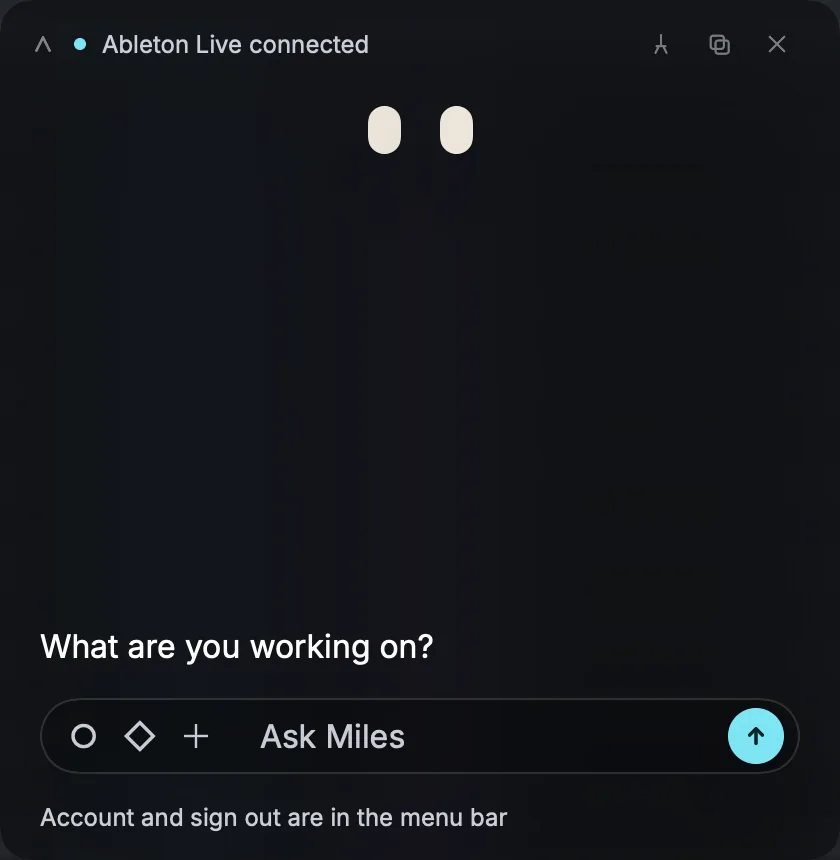
Miles has no Dock icon and no big window. On a Mac it lives in the menu bar as two small eyes. On Windows it lives in the system tray.
Open the panel
Click the eyes, or press Option+Space on a Mac or Alt+Space on Windows, from any app. If another app already holds that shortcut, Miles takes a free one, and Settings shows the one in use. On a Mac, right-click the eyes for the menu: Settings, New Chat, Sign Out and Quit Miles live there.
Sign in
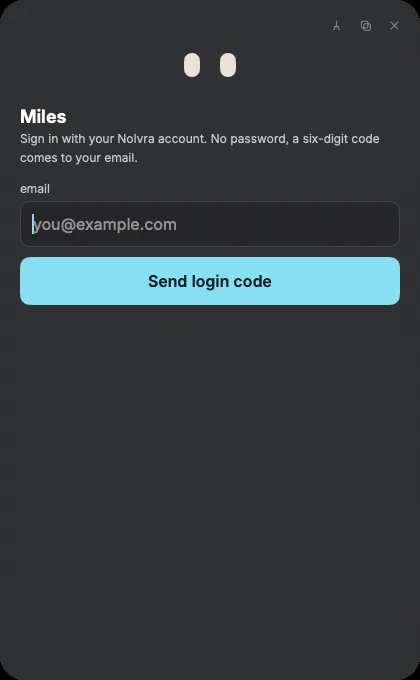
Send yourself a code
Enter the email of your Nolvra account and press Send login code. There is no password: a six-digit code comes to your email, from Nolvra Miles. It can take up to a minute to arrive.
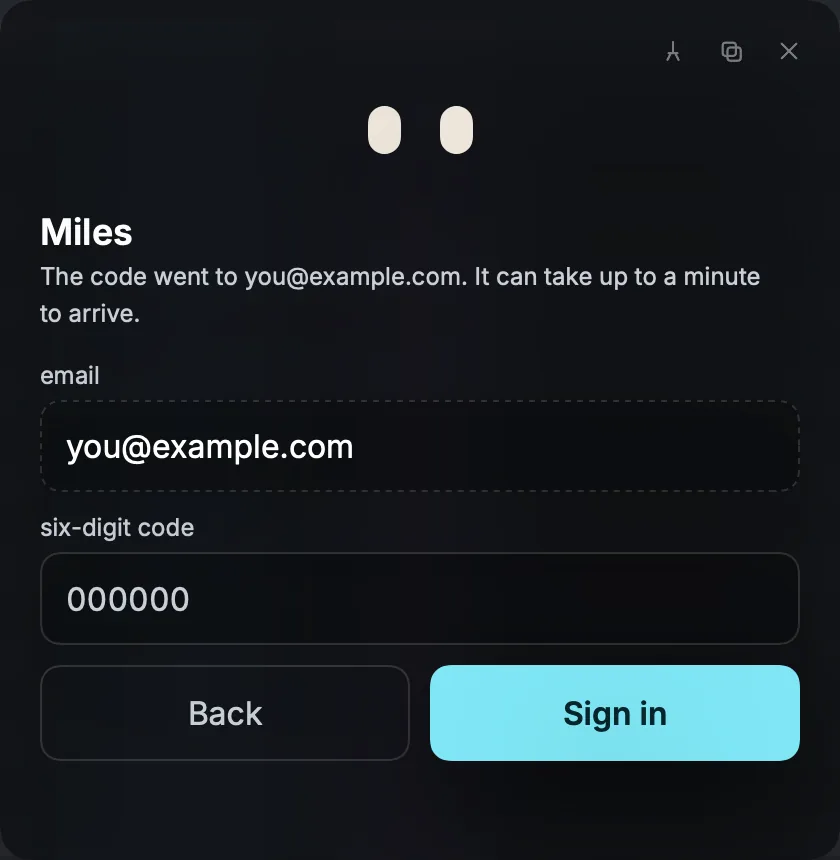
Enter the code
Type the six digits into the code field and press Sign in. The code works once and expires after 10 minutes. If it has expired, press Send a new code. If you typed the wrong address, press Use a different email.
Stay signed in
Your session is kept for about 30 days and the Hub does not have to stay open for Miles to work. When a session ends, Miles asks you to sign in again and your conversation is where you left it.
Ask your first question
Connect your DAW
Before the first question, connect Miles to Ableton Live so it can follow your set. That takes one click and one setting in Live, and the guide on connecting Miles to your DAW walks through it.
Ask
Type into the Ask Miles field and press send. Ask the way you would ask a friend at the desk: what is wrong with the kick, why the chorus feels small, what to try next.
Let it listen and look, or not
Miles asks before it listens or looks, with Listen or Look and Not now. Not now is remembered: Miles will not ask again, and you can still switch the ear or the eye on yourself whenever you like.
On Windows
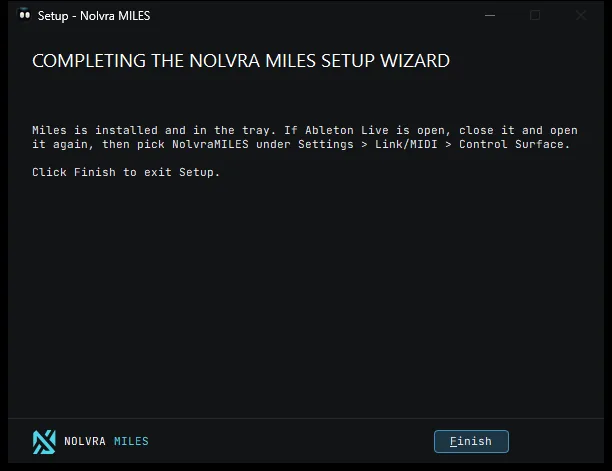
The Windows installer finishes with the one step that is left: if Ableton Live is open, close it and open it again, then pick NolvraMILES under Settings, Link/MIDI, Control Surface. Miles then opens by itself in the tray.
Next guides
- Connecting Miles to your DAW: the Ableton Live bridge, and FL Studio.
- Setting up FL Studio for Miles on Mac: the Install FL script button, a restart and FL Studio's MIDI settings.
- Setting up FL Studio for Miles on Windows with loopMIDI: two ports, the NolvraMILES script and FL Studio's MIDI settings.
- Miles Expert mode: Miles writes chords, bass, melody, an arp or drums into your DAW as MIDI.
Nolvra Miles is an AI assistant for Ableton Live and FL Studio. It reads your song and writes the part you ask for.
Still stuck?
Nothing here matching? Write to a person.